Import connectors
An import connector is a saved import configuration for a cloud storage bucket. You configure it once and run it as often as you need. Each run creates a new date-stamped dataset in the platform.
Import connectors support three data sources: Amazon S3, Google Cloud Storage, and Microsoft Azure. You find them under the Connectors item in the sidebar, in the Import connectors tab.
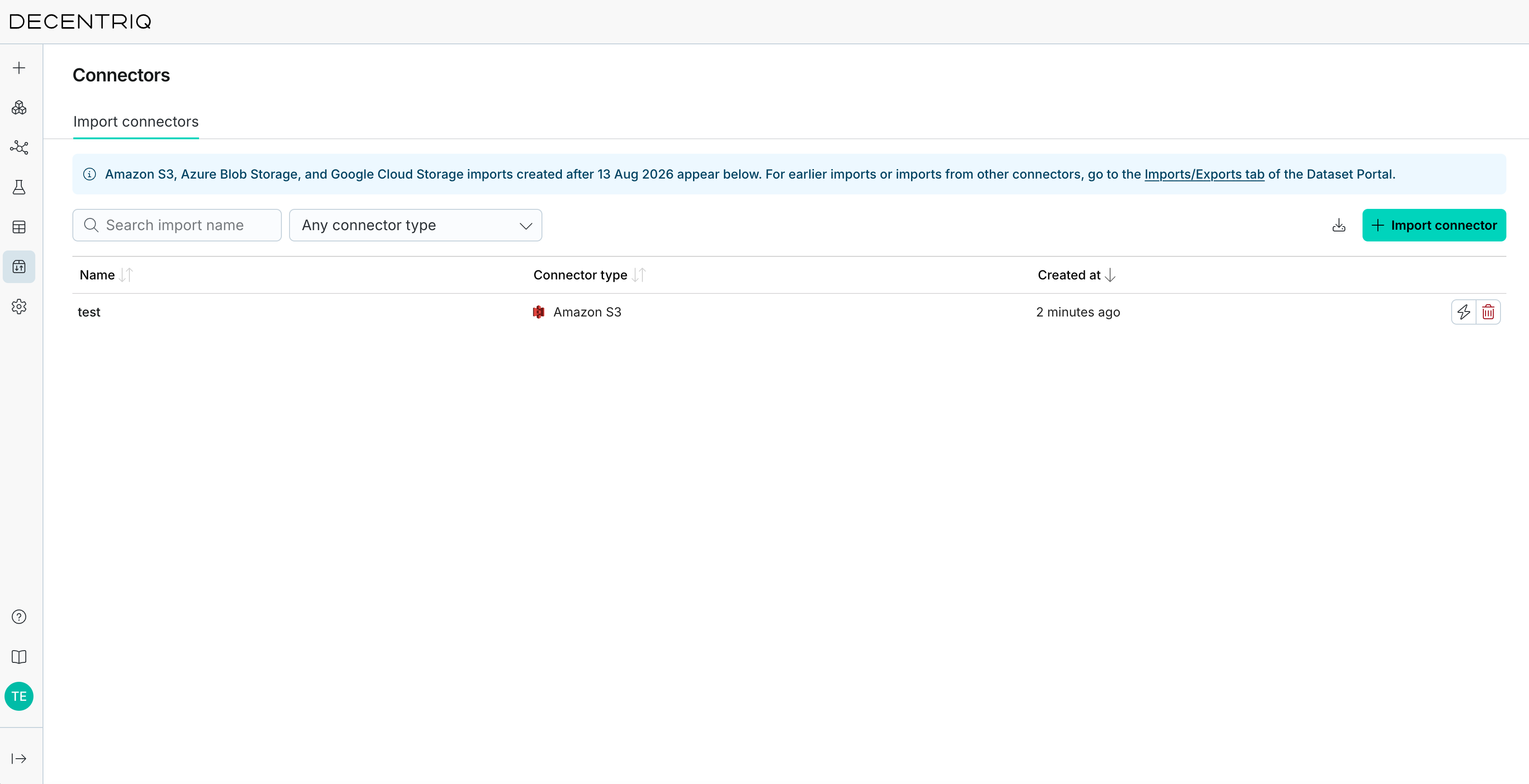
This page is available if import connectors are enabled for your organization. If the Import connector button is disabled, contact your customer success representative or support@decentriq.com.
Creating an import connector
Click the Import connector button to open the creation wizard (breadcrumb: Connectors › Create import connector). The wizard has four steps.
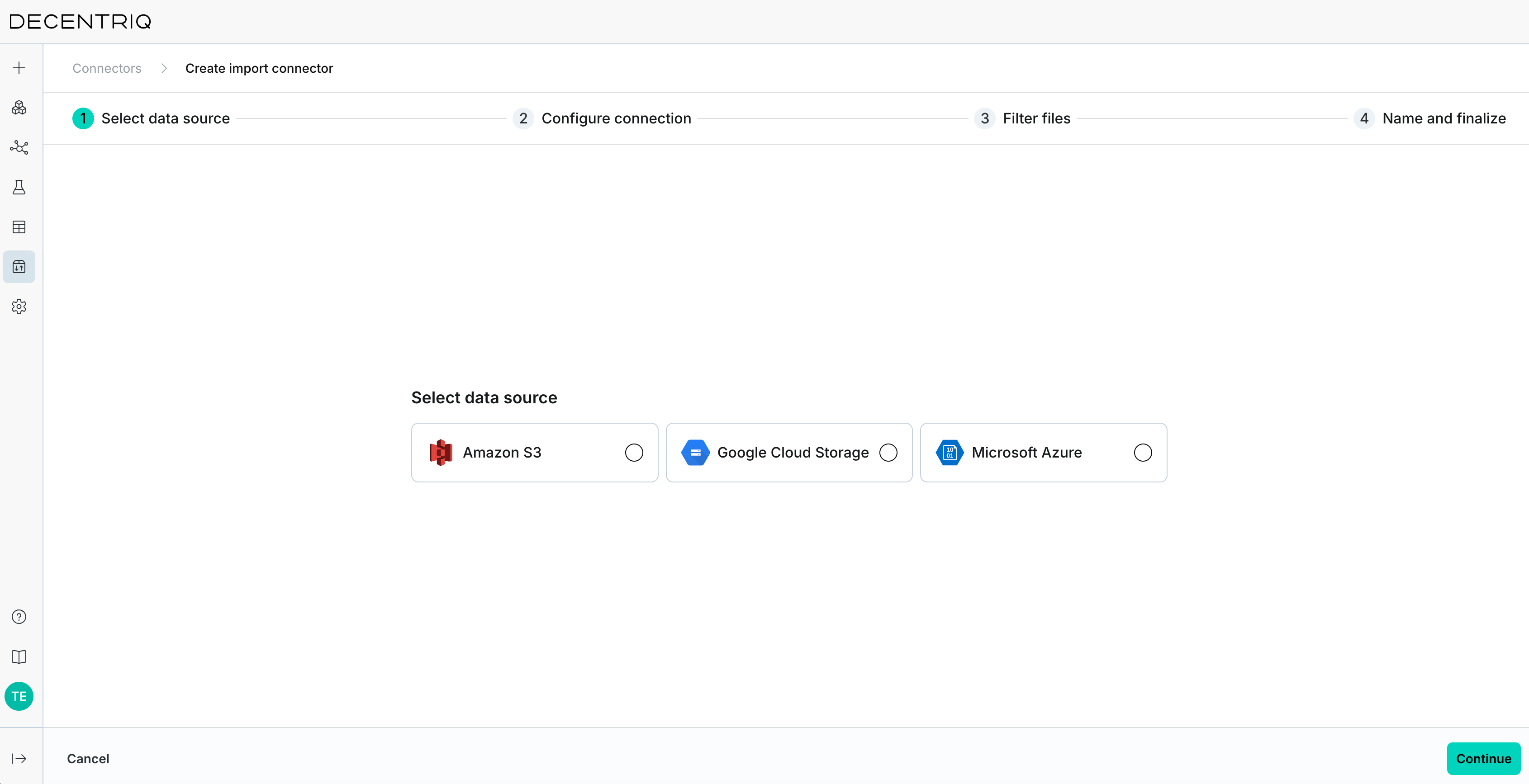
Step 1: Select data source
Choose one of the tiles: Amazon S3, Google Cloud Storage, or Microsoft Azure.
Each source requires credentials you set up on the provider side. See the prerequisites for Amazon S3 (IAM user and policy), Google Cloud Storage (service account), and Azure Blob Storage (SAS token).
Step 2: Configure connection
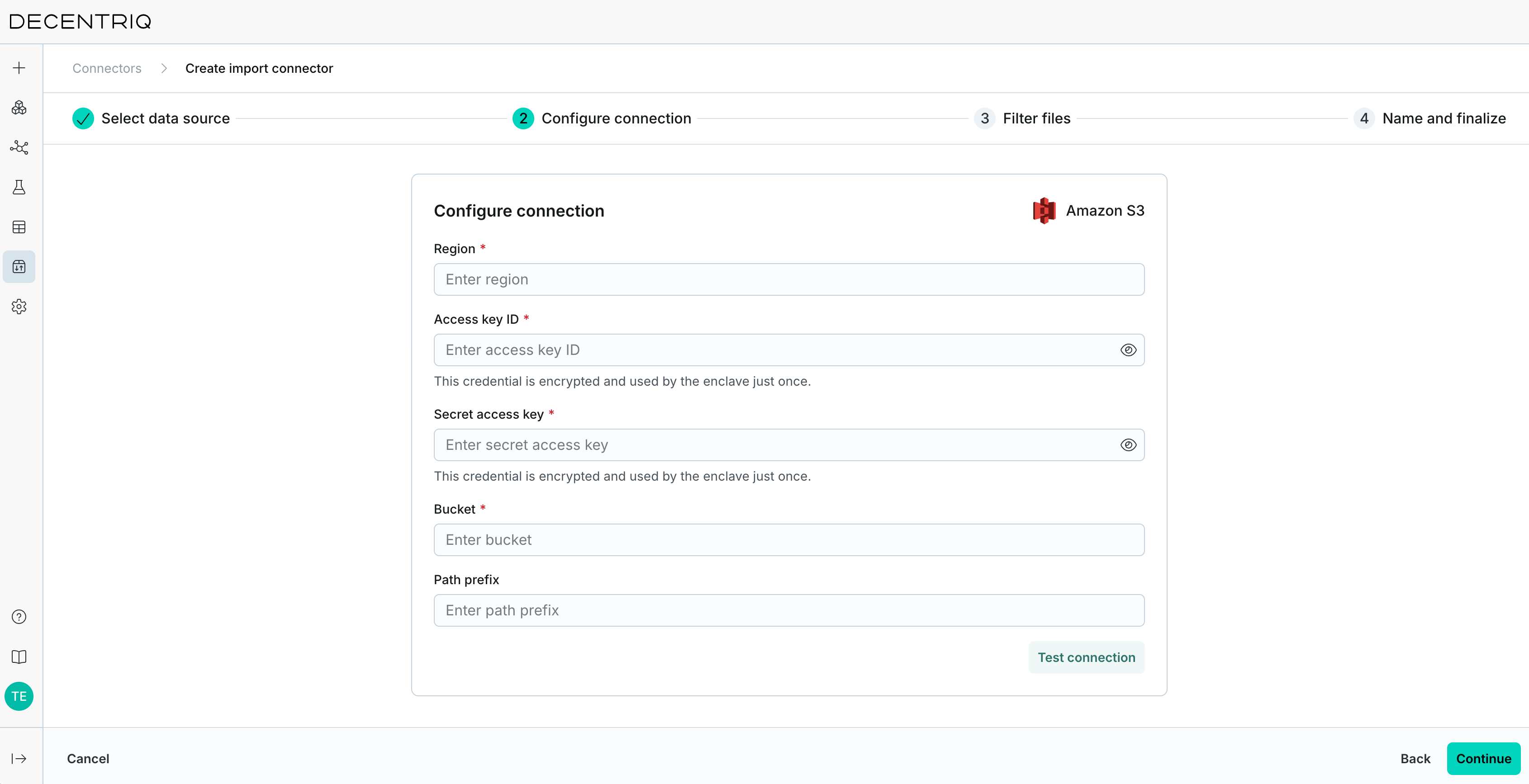
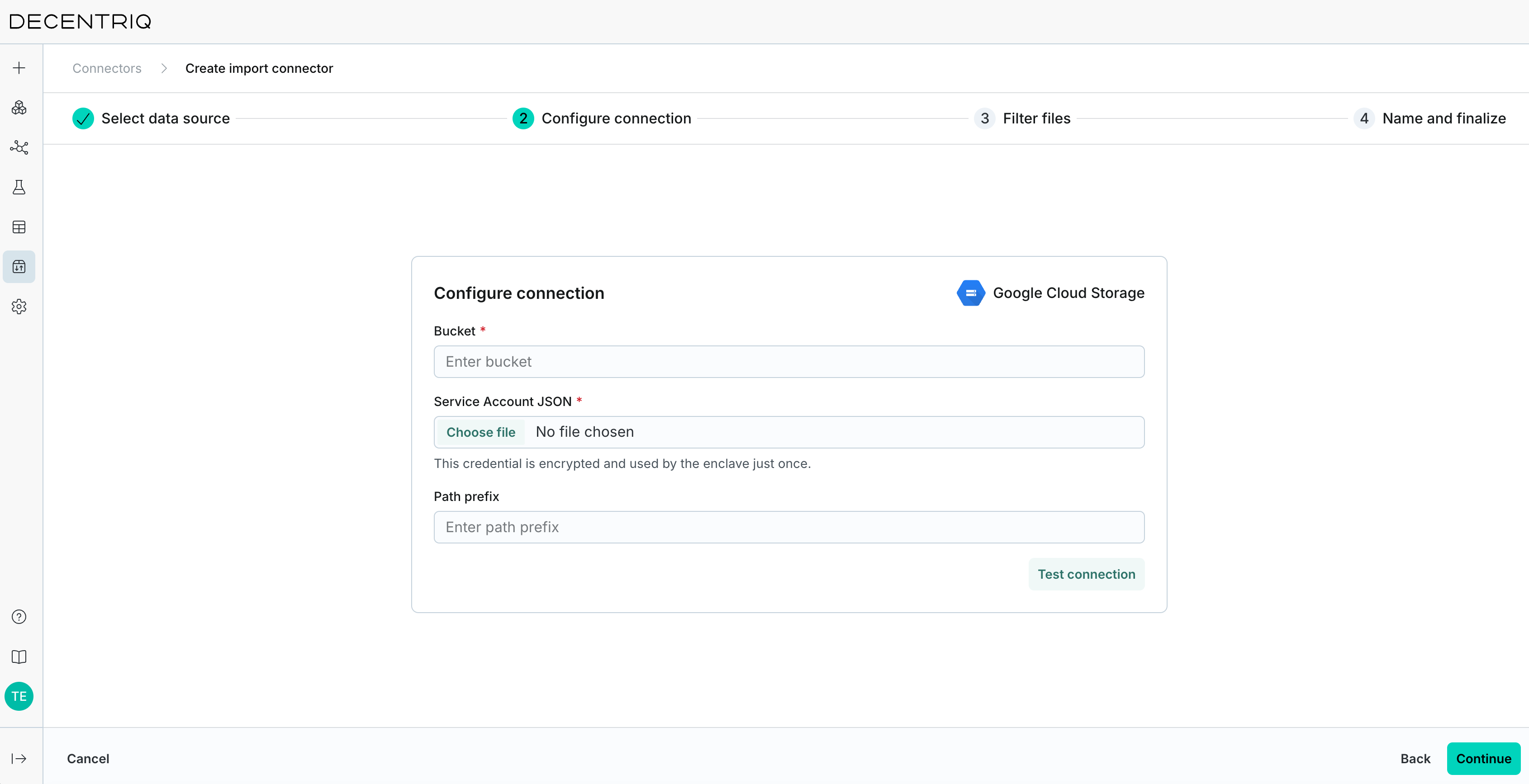
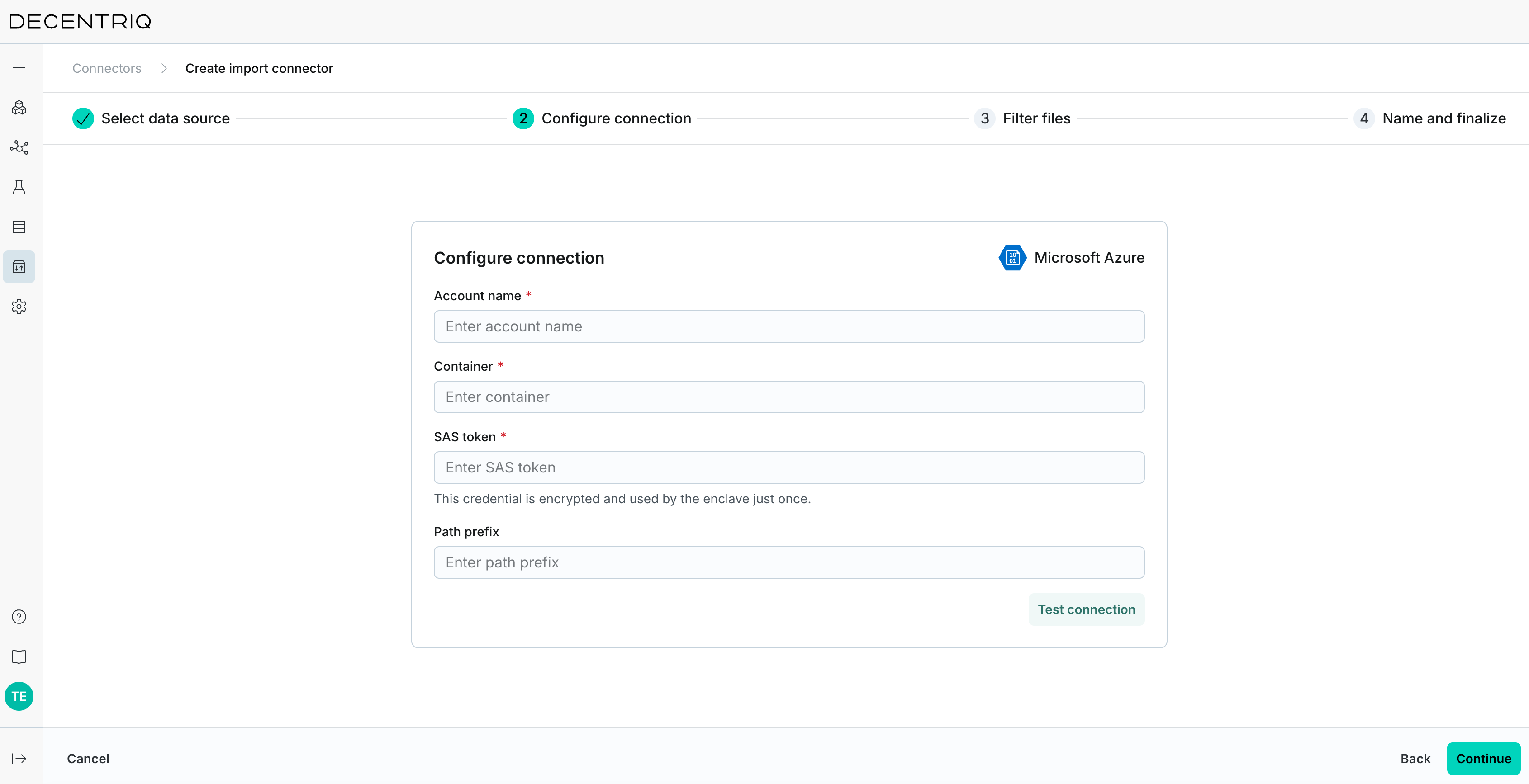
Enter the connection details for your source and click Test connection to verify the platform can reach your bucket before continuing.
For Amazon S3, provide Region, Access key ID, Secret access key, Bucket, and Path prefix:
For Google Cloud Storage, provide Bucket, Service Account JSON, and Path prefix:
For Microsoft Azure, provide Account name, Container, SAS token, and Path prefix:
Step 3: Filter files
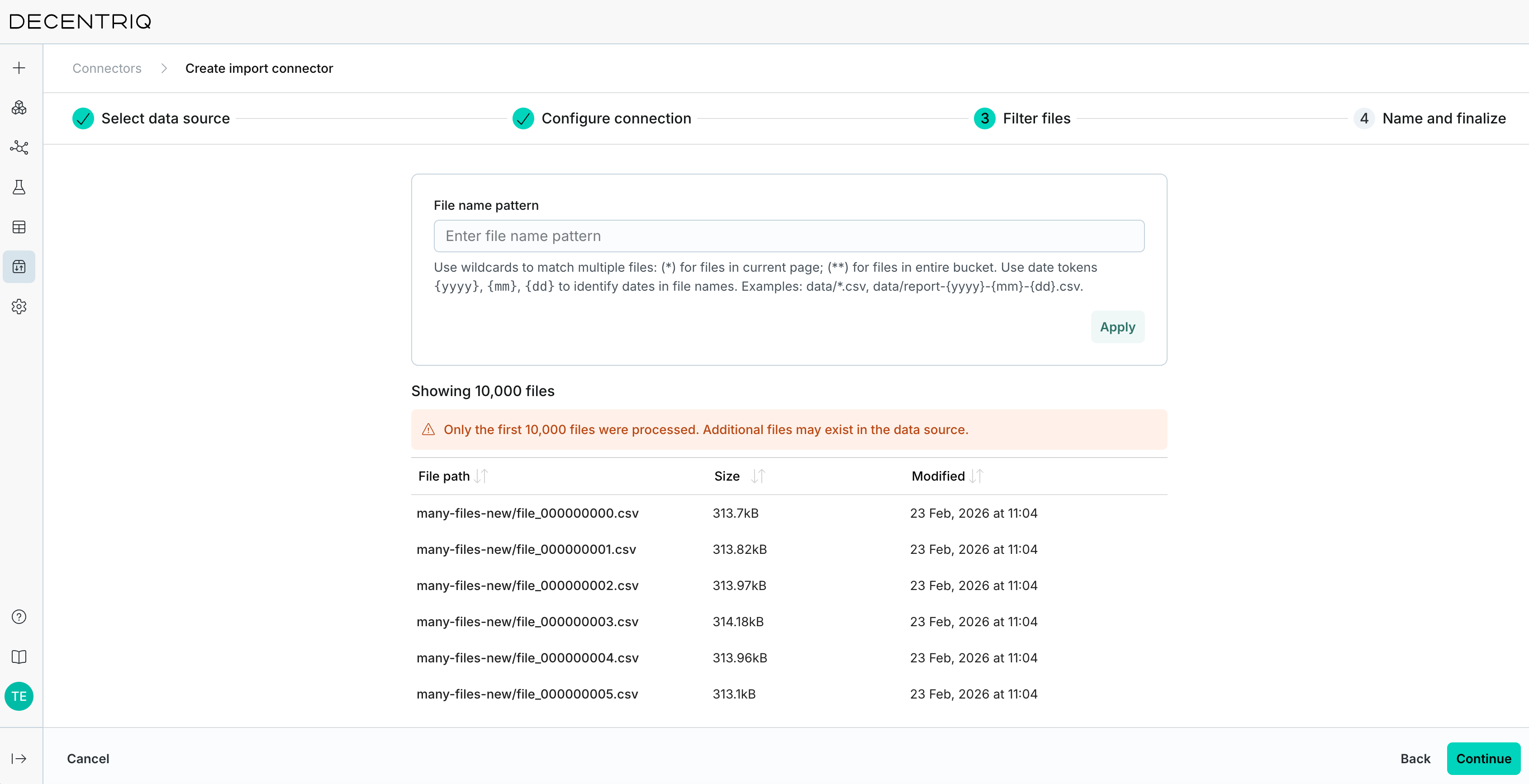
Use the File name pattern field to select which files each run imports. The pattern supports wildcards and date tokens:
*matches files in the current level,**matches files across the entire bucket.{yyyy},{mm}, and{dd}resolve to the date of the run.
For example, data/*.csv imports all CSV files in the data folder. data/report-{yyyy}-{mm}-{dd}.csv imports only the report for the day the connector runs.
You can also narrow the selection with Filter by date, using either a Relative or an Absolute range (Start date / End date, format YYYY-MM-DD). Click Apply to refresh the file preview table, which shows File path, Size, and Modified for each matching file.
The file preview shows at most 10,000 files.
Step 4: Name and finalize
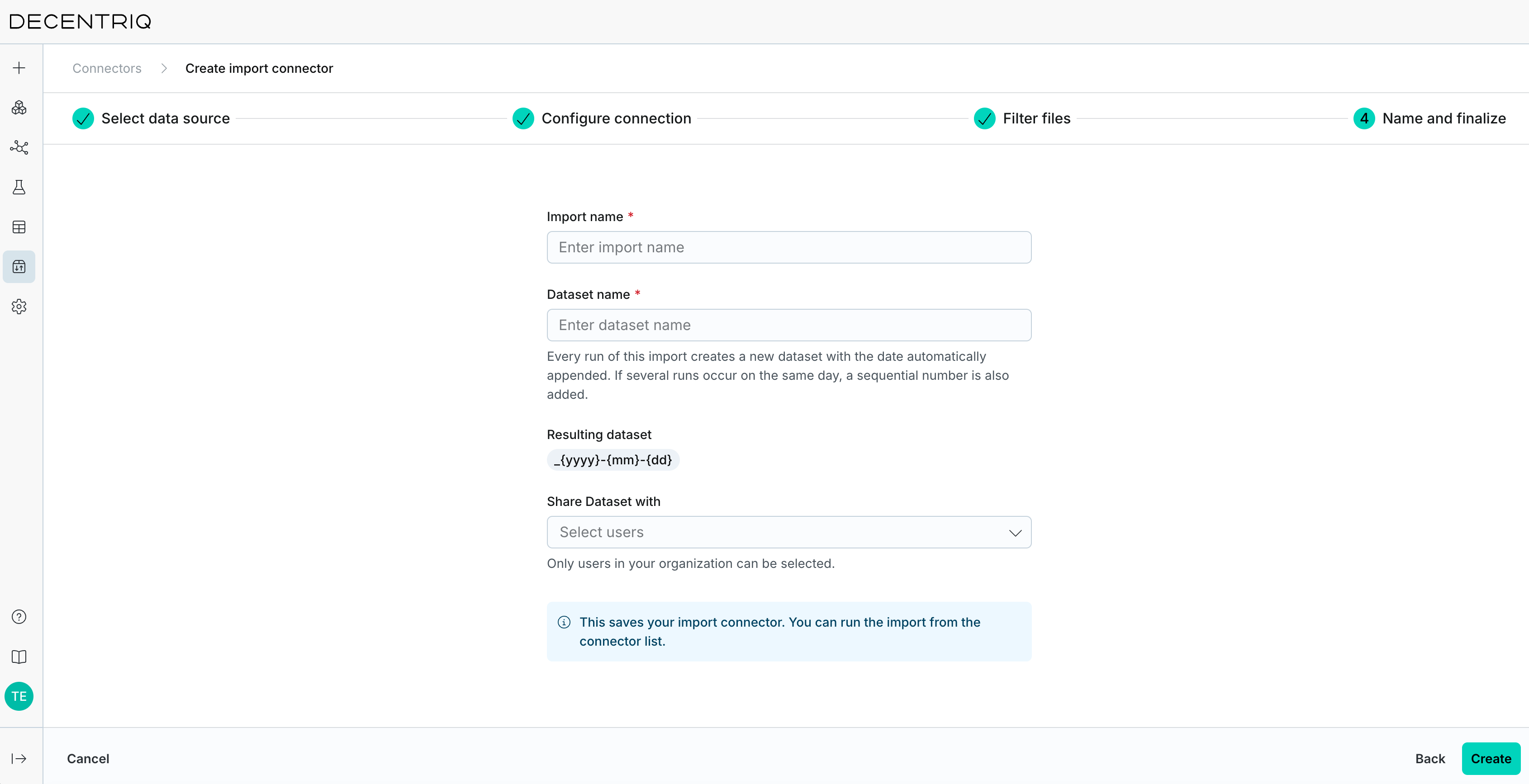
Set the Import name (the connector's name in the list) and the Dataset name. Every run creates a new dataset with the run date appended, as shown in the preview chip: <datasetName>_{yyyy}-{mm}-{dd}. If the connector runs more than once on the same day, later datasets also get a sequential number.
Use Share Dataset with to grant access to the created datasets. Only users in your organization can be selected.
Running an import connector
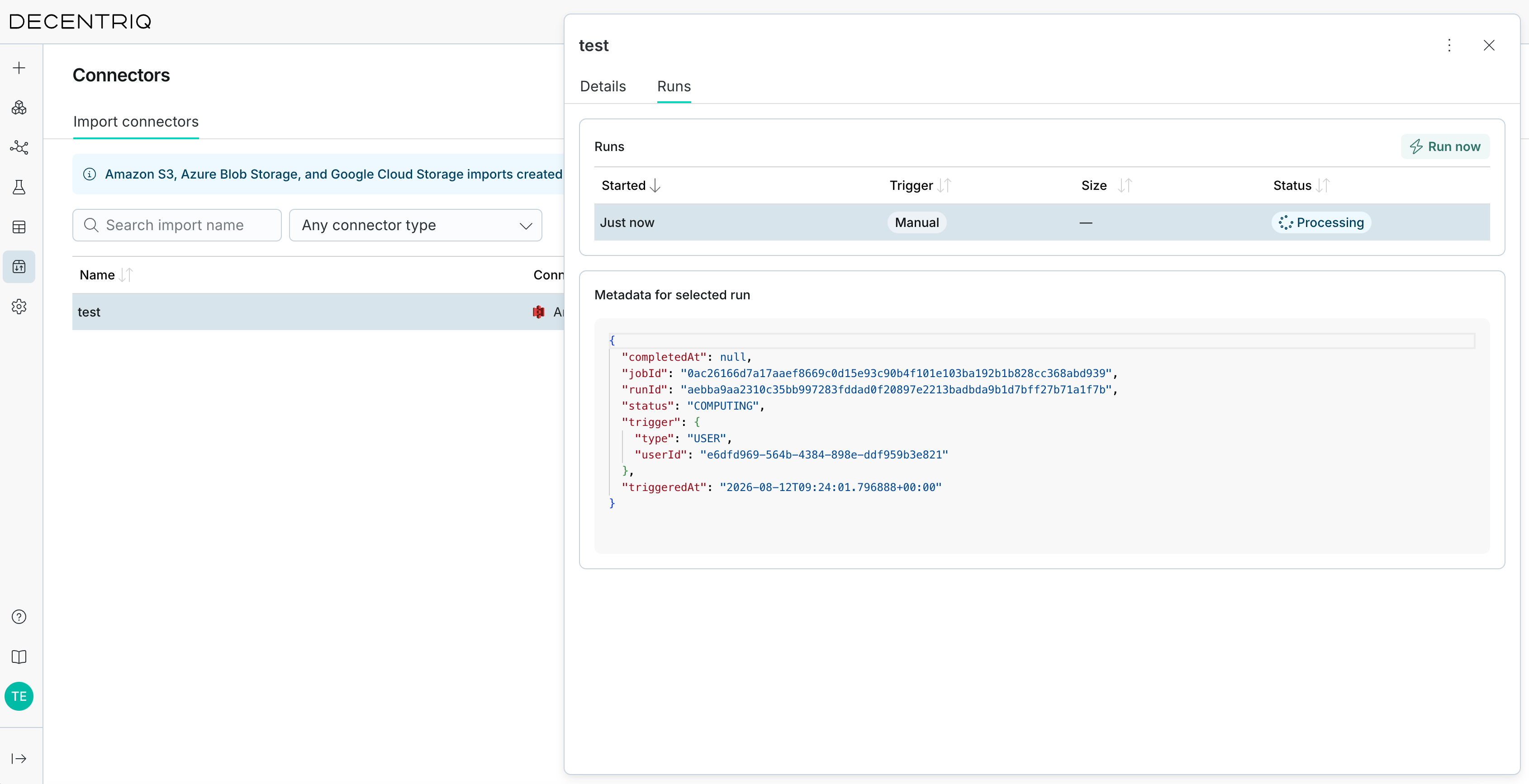
Run a connector from the Run import connector row action, or open it and click Run now in the Runs tab. Each run goes through the statuses Processing, Completed, or Failed.
Once a run completes, the new dataset appears in the Datasets tab of the Datasets page.
Imported files are stored as a zip archive, even when the connector imports a single file. Datalabs unzip them automatically.
Inspecting an import connector
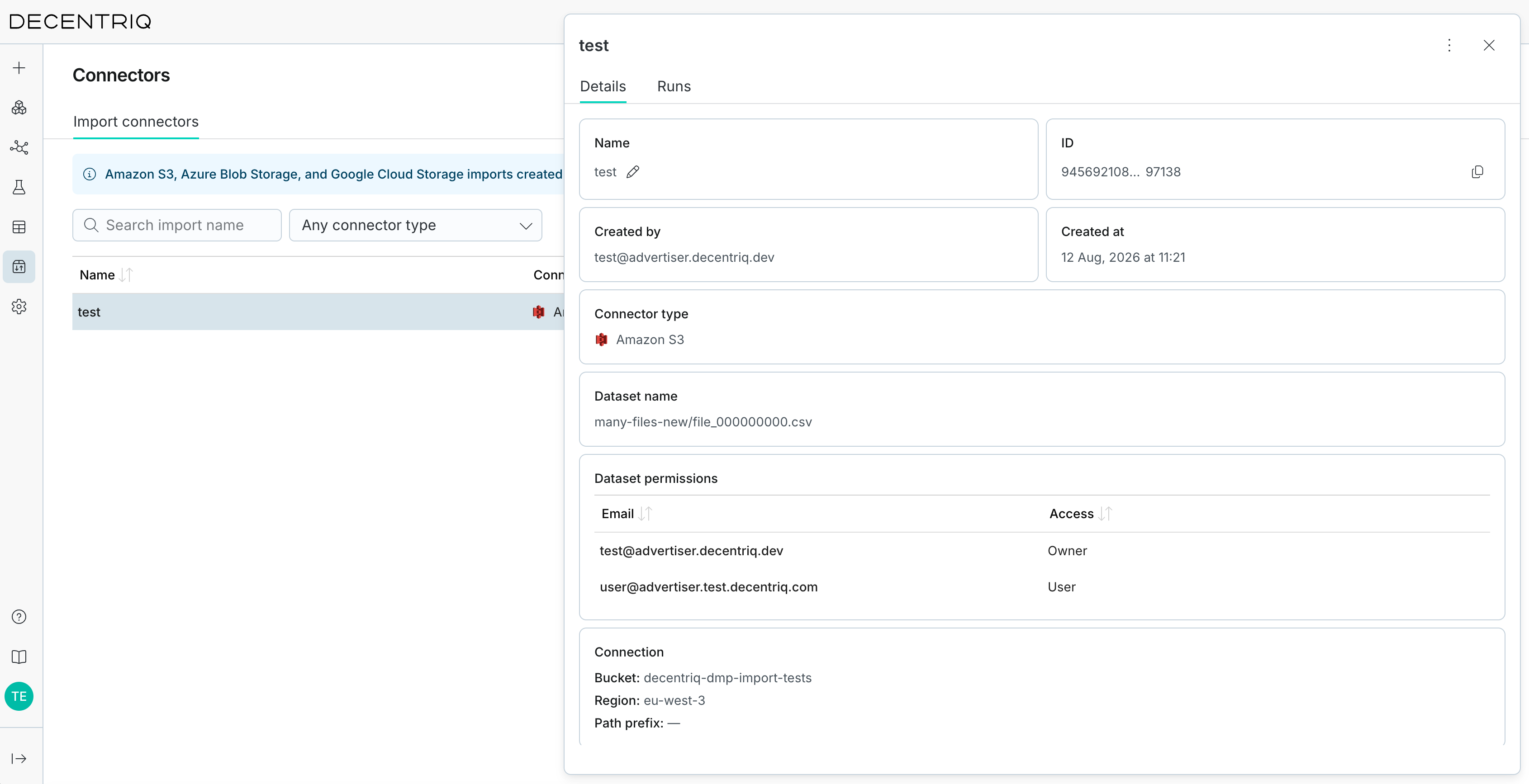
Click a connector in the list to open its drawer, which has a Details and a Runs tab.
The Details tab shows the connector's configuration: Name, Created by, Created at, Connector type, Dataset name, File names pattern, Connection, Dataset permissions, and Used in jobs. The Connection card shows the source-specific fields — Bucket, Region, and Path prefix for S3; Bucket and Path prefix for Google Cloud Storage; Container and Path prefix for Azure.
The Runs tab lists all runs with Started, Trigger, Status, and Size. The Trigger column shows Manual for runs you start and Job for scheduled runs. Select a run to see its details in the "Metadata for selected run" panel.
Managing import connectors
The list shows Name, Dataset name, Connector type, Created at, and Used in jobs for each connector. Use the "Search import name" field to filter it, or download it as a CSV file (import-connectors.csv).
Use the Rename import connector and Delete import connector row actions to rename or delete a connector. Deleting an import connector cannot be undone.
Older imports
Amazon S3, Azure Blob Storage, and Google Cloud Storage imports created after 13 Aug 2026 appear on the Connectors page. Earlier imports, and imports from other sources such as Permutive, Salesforce, and Snowflake, stay in the Imports/Exports tab of the Datasets page.
If you have questions, contact your customer success representative or support@decentriq.com.