Jobs
A job runs a series of tasks in a fixed order, on a schedule you set. Use jobs to automate work that has to happen regularly, such as importing fresh data every day.
Currently, the only type of task is an import, which runs an import connector. Support for other task types is planned.
You find your jobs under the Jobs item in the sidebar. The list shows Name, Number of tasks, Schedule, Created at, Last completed at, and Status for each job. Use the "Search job name" field to filter it, or download it as a CSV file (jobs.csv).
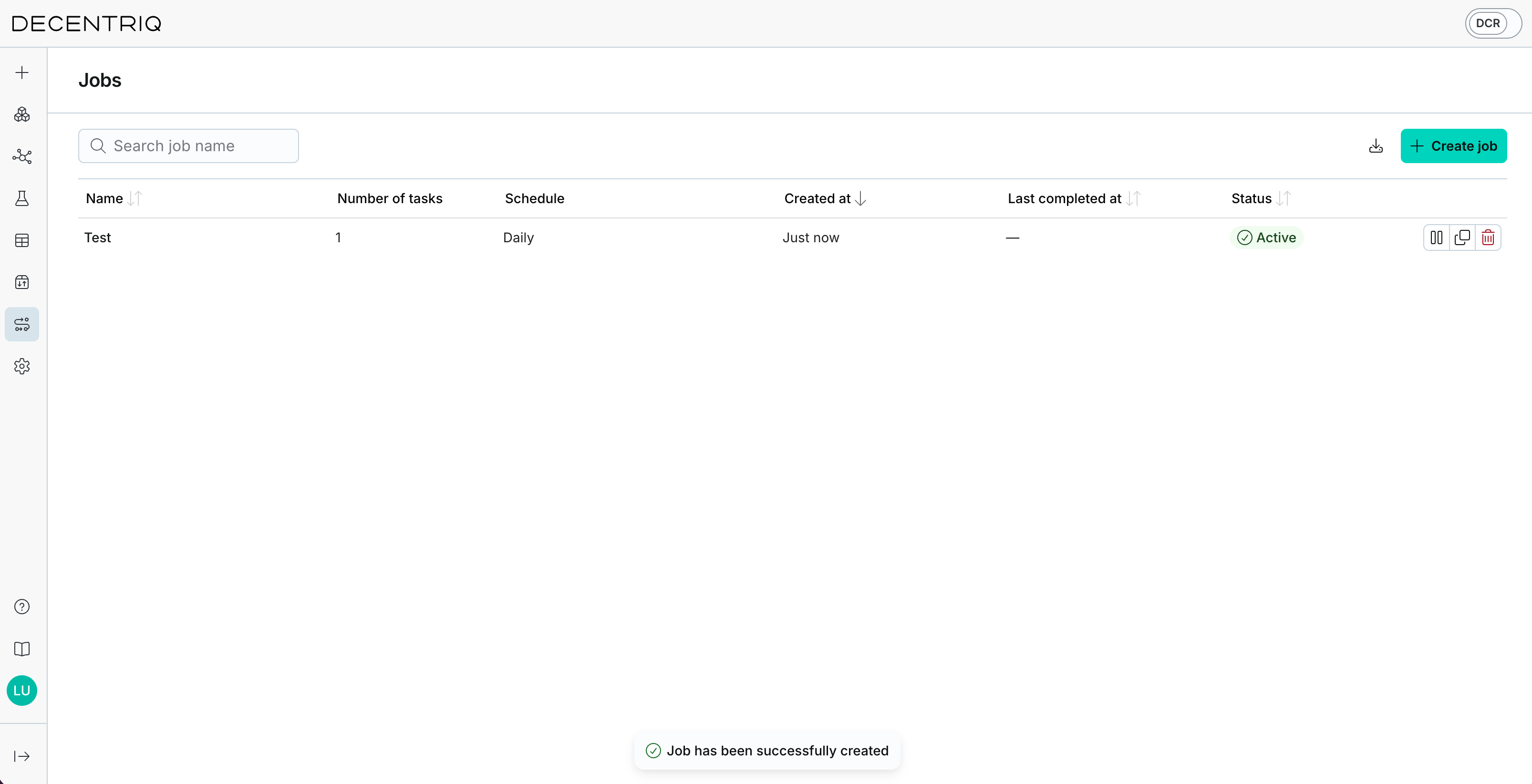
Creating a job
Click the Create job button to open the creation wizard (breadcrumb: Jobs › Create a job). The wizard has two steps.
Step 1: Define job tasks
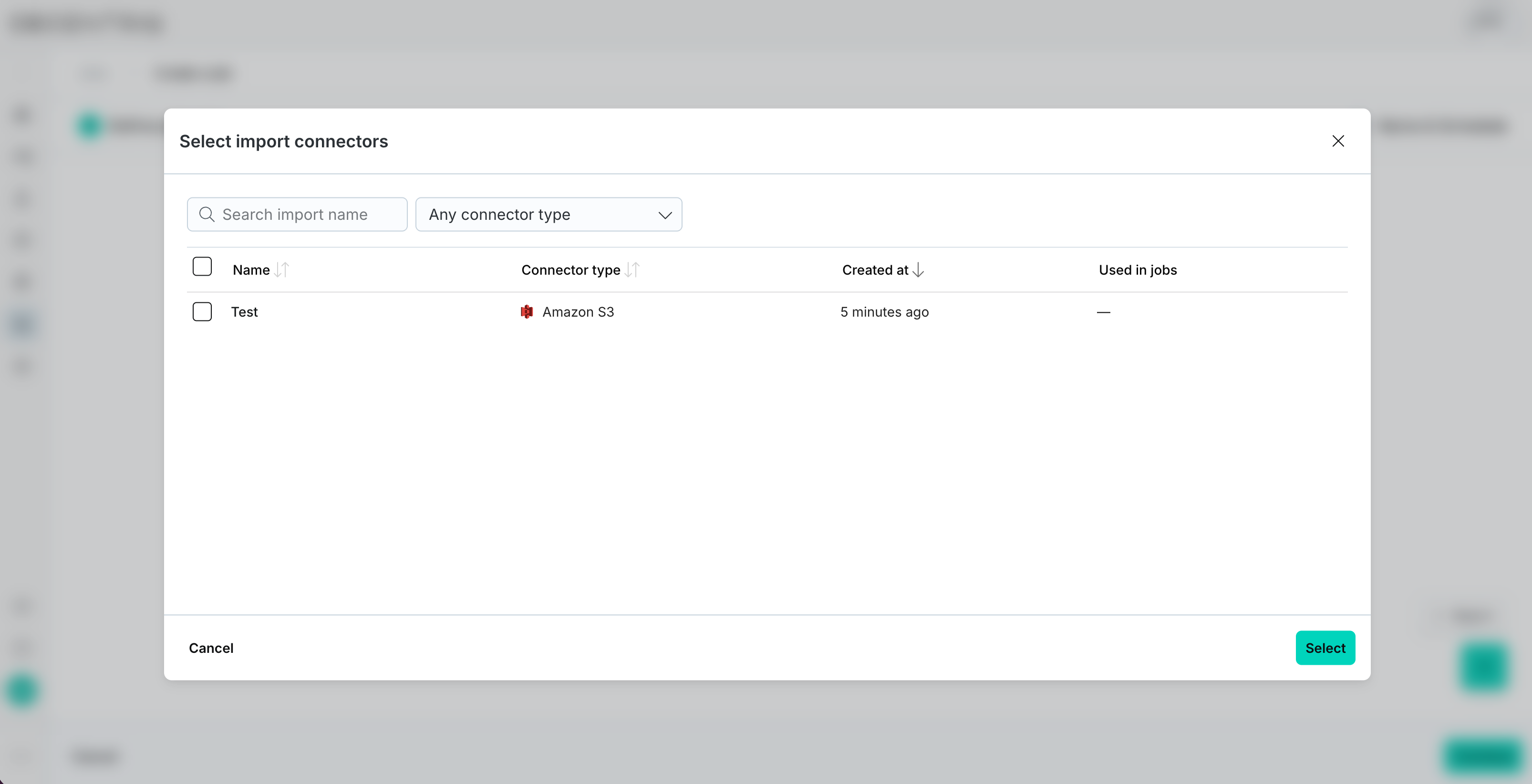
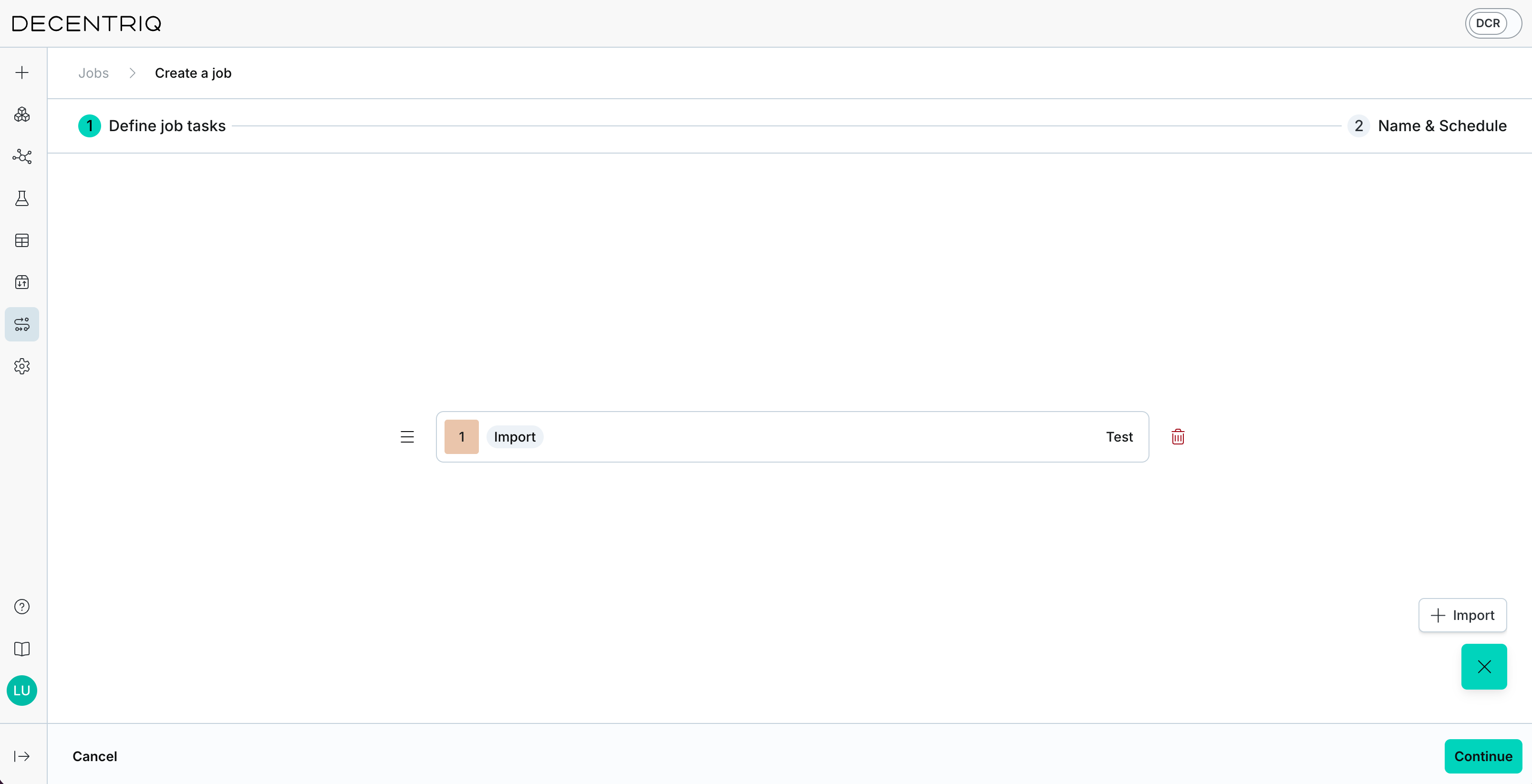
Click Add import to add your first task. To add more tasks, click the + button in the bottom right and choose Import. In the Select import connectors dialog, select one or more import connectors and click Select. Each selected connector becomes a task.
The tasks run in the order shown. Drag a task by its handle to change the order, or click the trash icon to remove it. A job can have up to 50 tasks.
Step 2: Name & Schedule
Enter the Job name. To run the job automatically, check Set a schedule and choose a Frequency:
- Run daily: Once a day.
- Run weekly: Once a week.
- Run monthly: Once a month, on a day between the 1st and the 28th.
- Custom: Every 1 to 365 days, or every 1 to 52 weeks on the weekdays you select, at a time you choose. The time is in your browser's time zone and stays the same when the clocks change for daylight saving time.
Run daily, Run weekly, and Run monthly jobs run at a time between 00:00 and 06:00 UTC that the platform sets for each job. To choose the time yourself, use Custom.
If you leave Set a schedule unchecked, the job only runs when you start it manually.
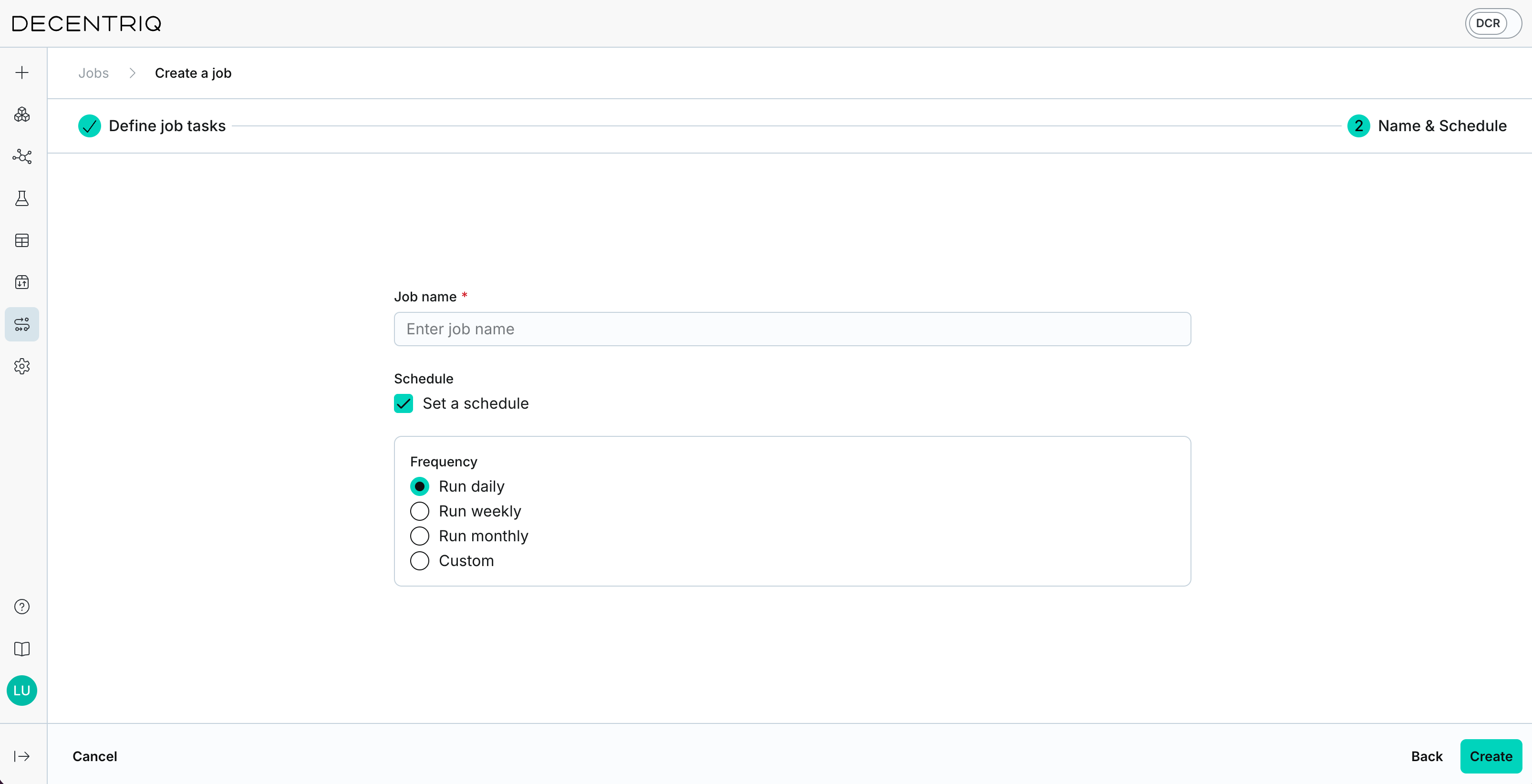
Click Create to save the job.
How a job runs
Each run of a job goes through its tasks one after the other. A task only starts after the previous task has completed.
If a task fails, the remaining tasks don't run: they're skipped and the run fails. For example, if a job has 10 tasks and the fifth fails, tasks 6 to 10 are skipped. Fix the cause using the task's error report, and the next run starts again from the first task.
A job runs only once at a time. If a scheduled run is due while the previous run is still in progress, the scheduled run is skipped. It isn't run later.
A run and each of its tasks can have the status Scheduled, Processing, Completed, Failed, or Cancelled. Tasks that didn't run because an earlier task failed have the status Skipped.
What a task produces depends on its type. An import task runs its import connector, which creates a new dataset like any other run of the connector.
Cancelling a run
To cancel a run in progress, click the Cancel run row action in the Runs tab. Tasks that haven't started yet don't run. A task that's already running can't be stopped and finishes on its own.
Running a job manually
To start a run outside the schedule, open the job, go to the Runs tab, and click Run now. This also works for paused jobs and jobs without a schedule. You can't start a run while another run of the job is in progress.
Inspecting a job
Click a job in the list to open its drawer, which has a Details and a Runs tab.
The Details tab shows the job's Name, ID, Created by, Created at, Schedule, and Tasks.
The Runs tab lists all runs with Started, Trigger, Duration, Tasks, and Status. The Trigger column shows Manual for runs you start and Automatic for scheduled runs. Hover over a task icon to see when the task started and how long it took. For a failed task, click Download error report to download the error as a text file. Select a run to see its details in the "Metadata for selected run" panel.
A dataset created by a job shows a Run ID card in its details. Click the run ID to open that run of the job. In the same way, the Used in jobs card of an import connector links to the jobs that use it.
Managing jobs
Use the row actions in the list to manage a job:
- Pause job and Resume job: Stop and restart the schedule. These actions are only available for jobs with a schedule. Pausing a job doesn't stop a run in progress.
- Rename job: Hover over the name and click the pencil icon.
- Duplicate job: Open the wizard with a copy of the job's tasks and schedule.
- Delete job: Delete the job. This can't be undone, and isn't possible while a run is in progress.
You can't change the tasks or the schedule of an existing job. To change them, duplicate the job, adjust the copy, and delete the original.
The Jobs list only shows the jobs you created. Only the user who created a job can run, pause, rename, or delete it. A job runs with the permissions of the user who created it.
If an import connector used in a job is deleted, its task is skipped in every following run, and so are the tasks after it. The job shows a warning. Duplicate the job to create a copy without the missing task.