Getting started with DMP Exports
Exports is the central hub for all DMP exports. From here, you can create new exports to supported external destinations or to a Decentriq DCR dataset, schedule recurring runs, and monitor execution status.
Creating an export
Click Create export, choose an export destination, and enter the connection details and configuration. See Supported external destinations and Export to Decentriq DCR Dataset Portal for detailed documentation on each destination.
Exports may take some time and run in the background; you can continue using the platform while they process. Once an export has run successfully, the data is available in the configured destination.
Decentriq does not have access to the credentials nor to the exported files. The data connector tooling leverages confidential computing technology, which prevents everyone except the data owner from accessing the data.
Managing exports
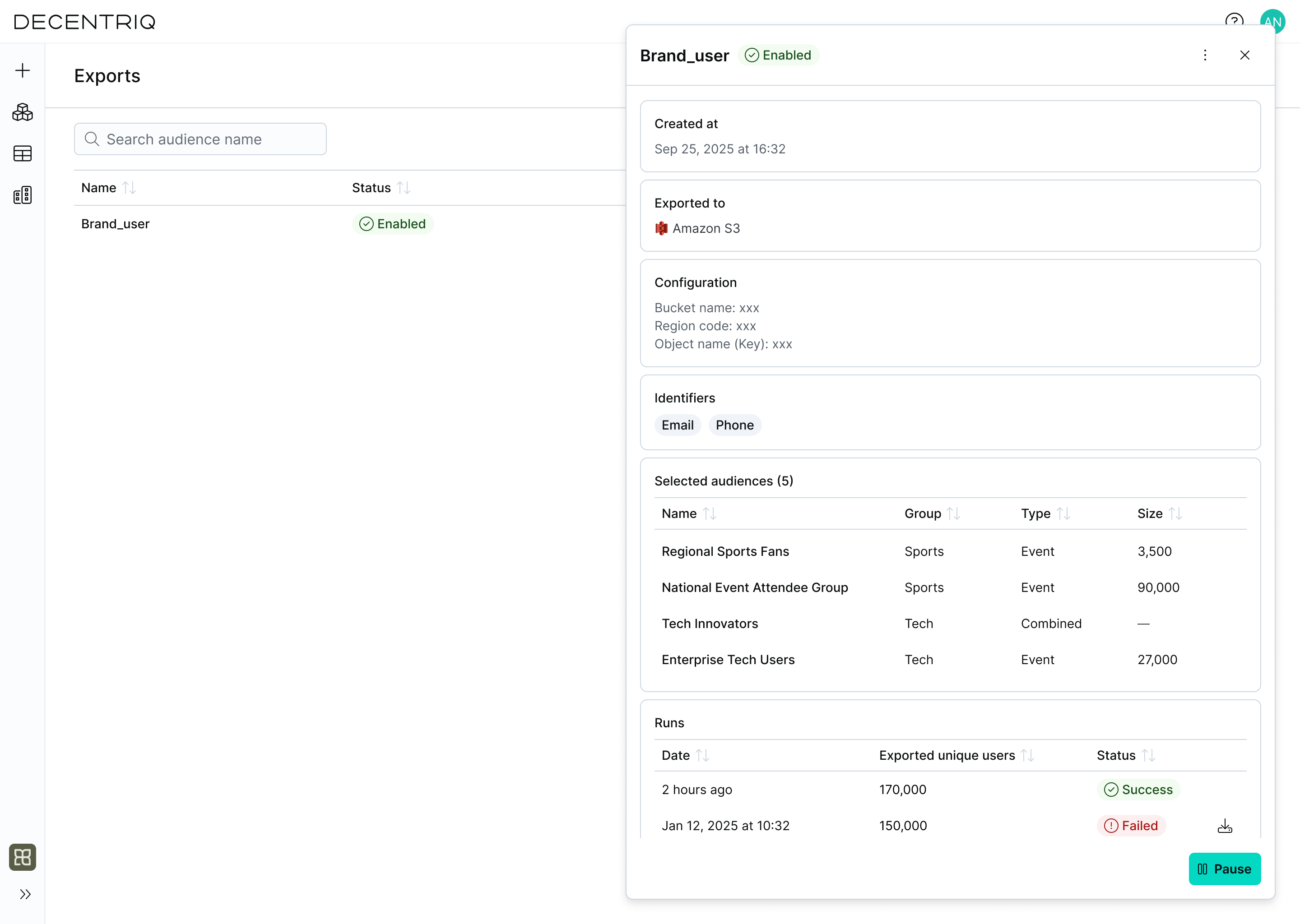
The exports table provides an overview of all configured exports.
For each export you can see:
- Name: The user-defined name of the export.
- Destination: Where the data is exported to (for example, Amazon S3).
- Schedule: How often the export runs.
- Status: Whether the export is enabled, paused, or has failed.
- Created: When the export was created.
- Actions: Pause, resume, or delete the export.
Pausing an export temporarily stops data delivery without losing the configuration. Deleting an export permanently removes the configuration and stops all future runs (previously exported data is not removed from the destination).
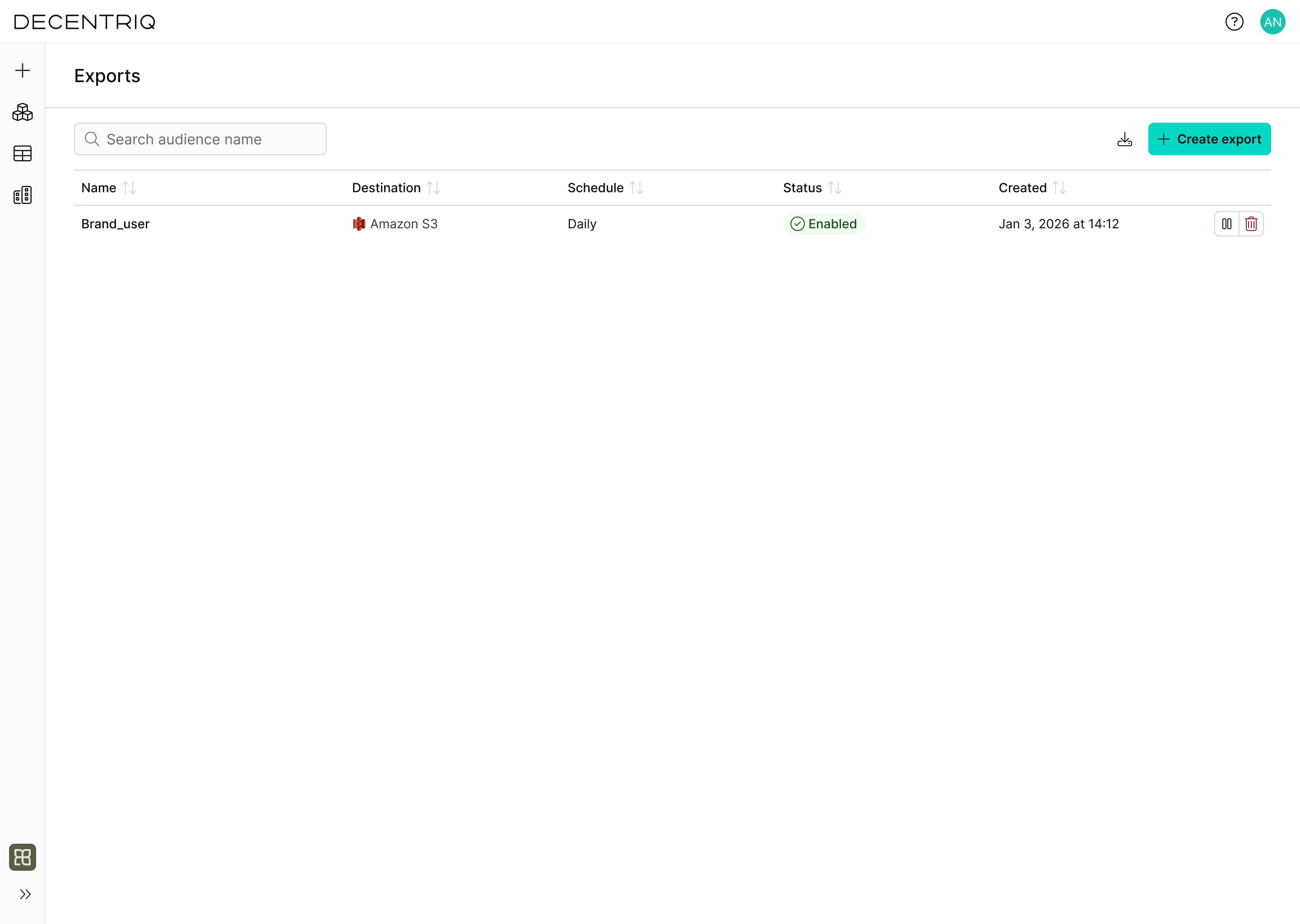
Export details
Click an export in the list to open its details view, where you can inspect and update its configuration. From this view you can review the destination and connection details, inspect the selected identifiers and audiences, monitor individual export runs, and pause or resume the export.