Amazon S3
Overview
The Amazon S3 connector provides a convenient way of exporting data directly from the Decentriq DMP to an Amazon S3 bucket.
Prerequisites
Have an AWS account.
Have an existing Amazon S3 bucket where data can be uploaded.
Have created IAM credentials with write permissions for the above bucket. The access key and secret key are required when exporting.
The following steps detail how to set up an IAM user and store the necessary credentials:
Log in to your AWS account and navigate to IAM > Users
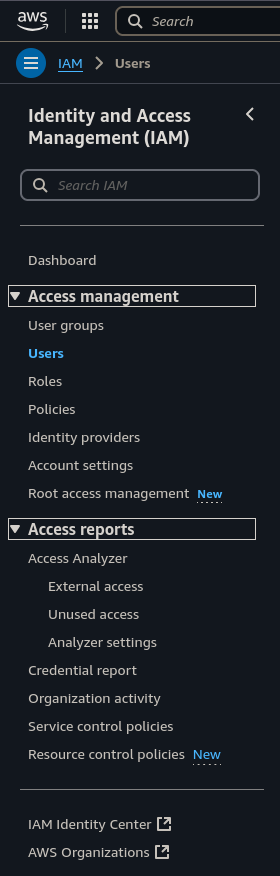
Click Create user and provide an appropriate user name.
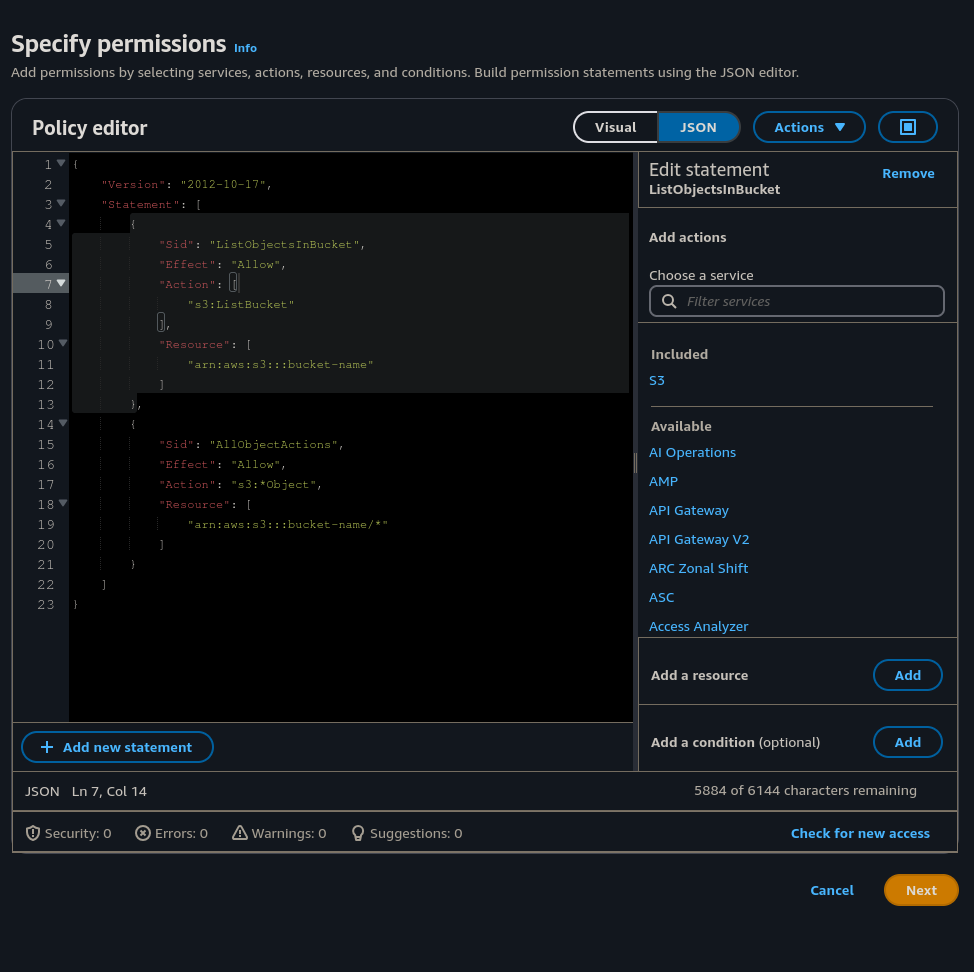
Click Next and then set the necessary permissions. You can define the policy by selecting Attach policies directly and then clicking Create policy. The policy can be defined in JSON format by selecting the JSON button. Write access is necessary to allow Decentriq to upload data to the bucket. See here for more details on creating the read/write policies.
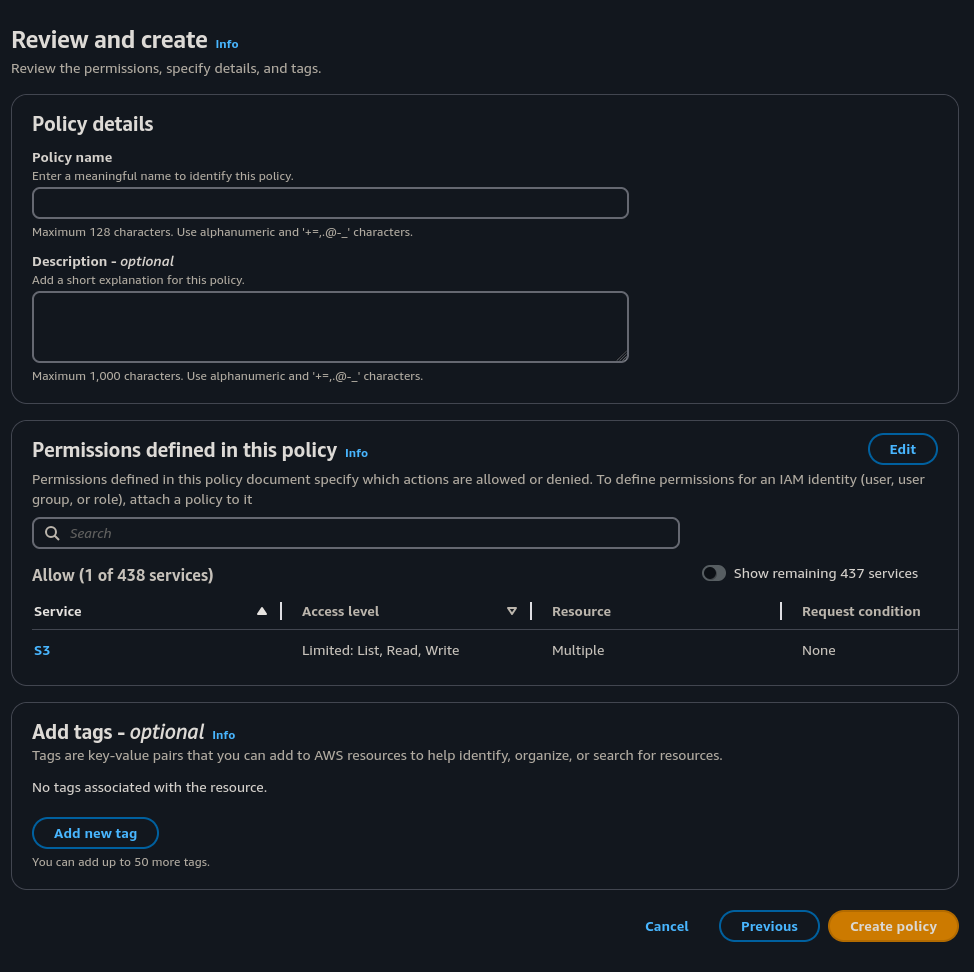
Click Next to review and create the policy.
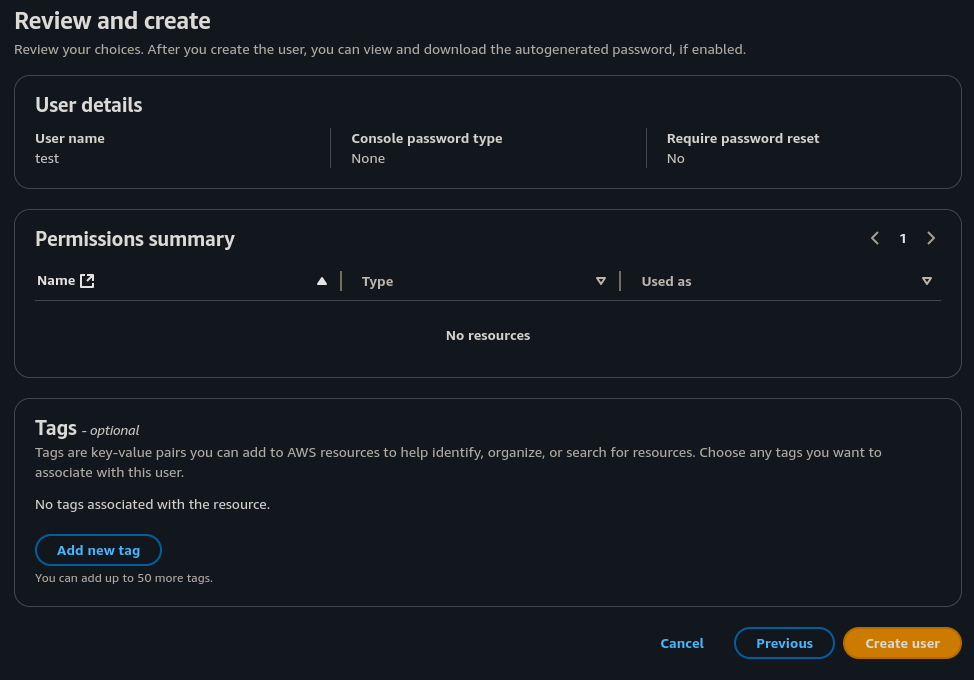
Click Create user to create the user with the given permissions
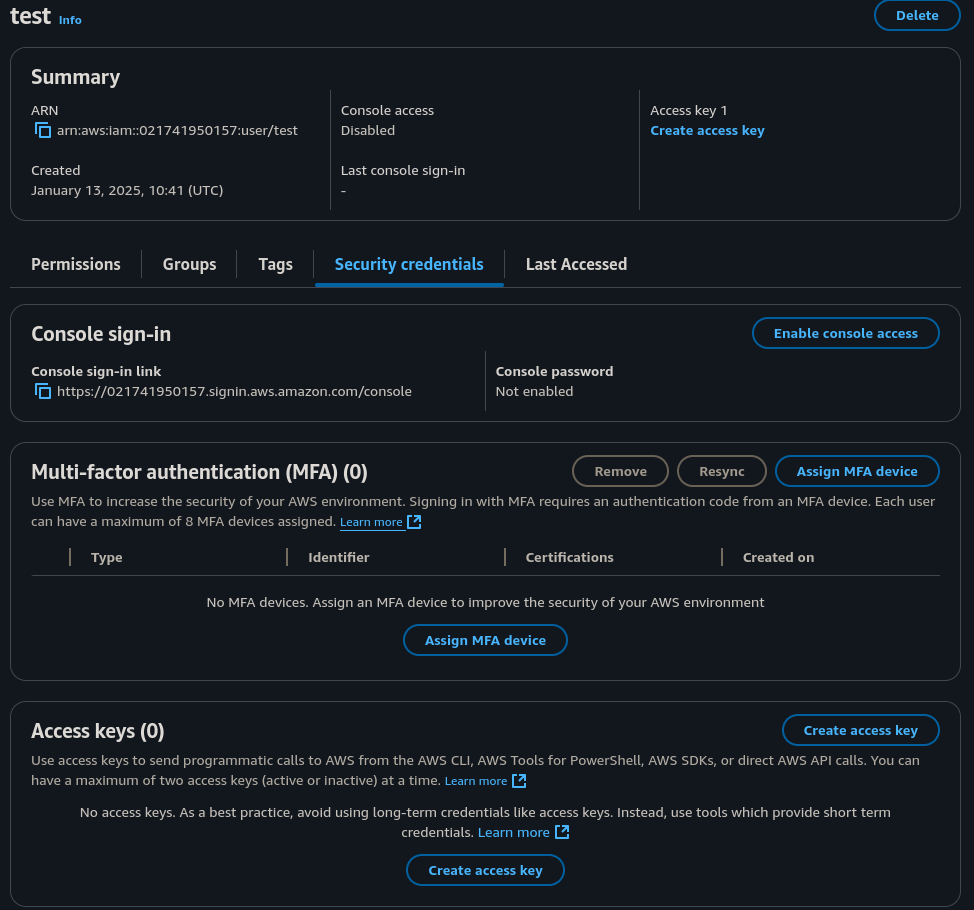
Next click on the newly created user and navigate to the Security credentials tab
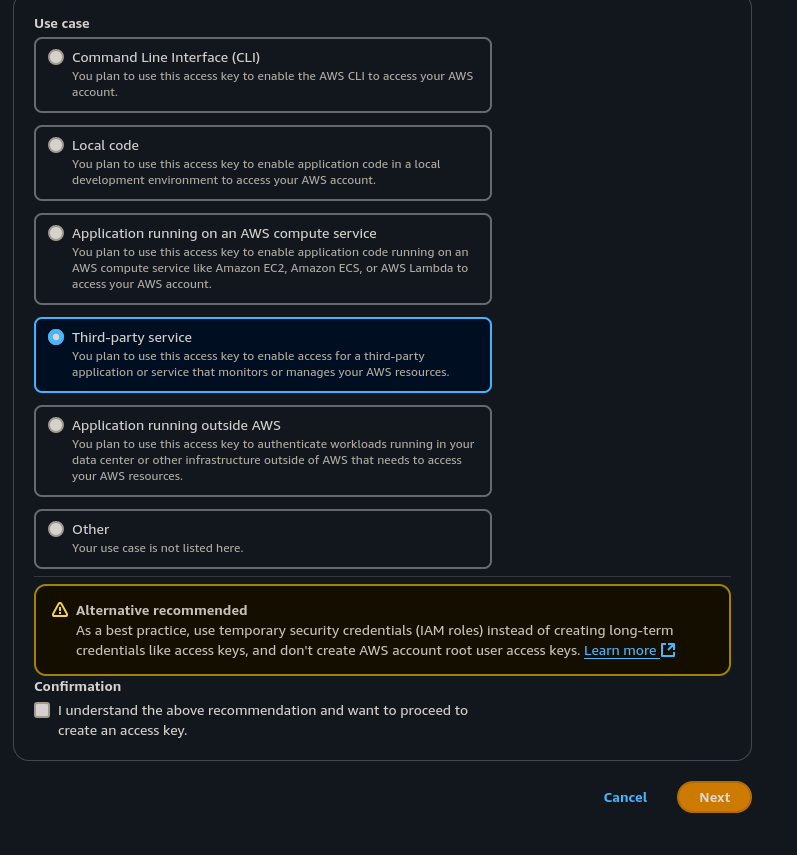
Click Create access key and select Third-party service
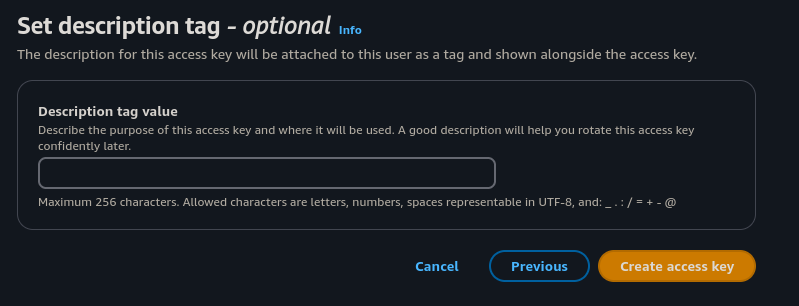
Click Next and provide a description for your access key.
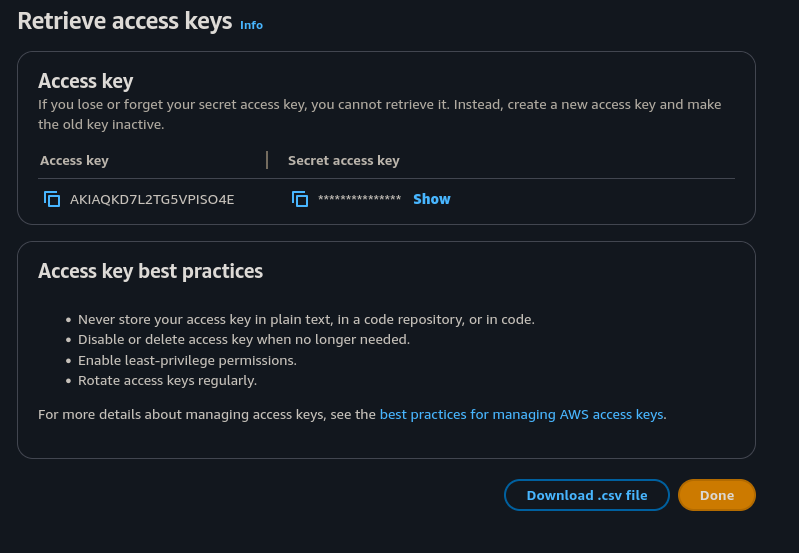
Click Create access key and then click Download .CSV file. Make sure you store this securely as the access key and secret key will be required when exporting data.
Step-by-step guide
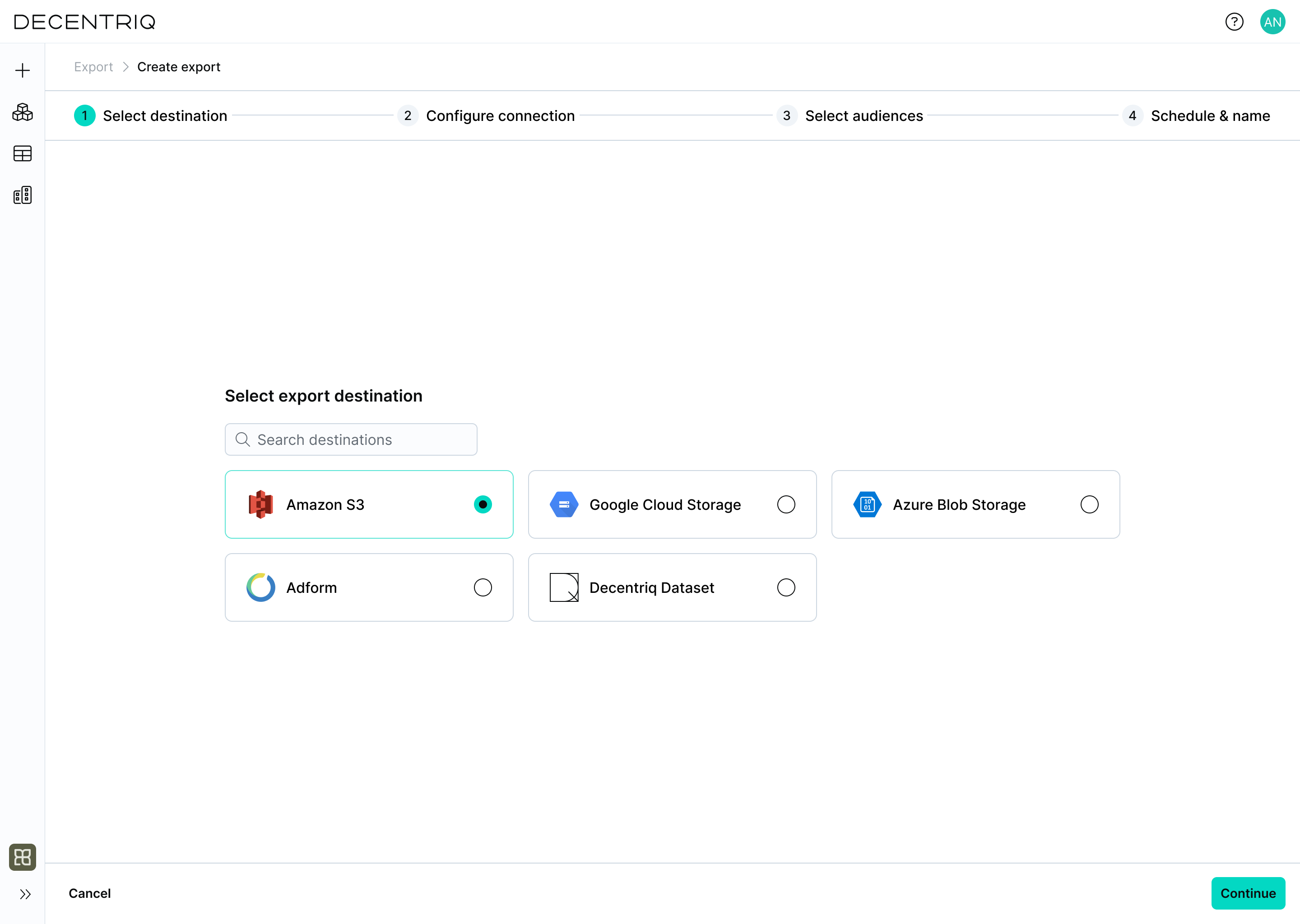
Step 1: Select the destination
Follow the steps to create a new export and select Amazon S3 from the list of connectors.
Step 2: Configure connection
Click Continue to proceed to connection configuration. Enter the required connection details for Amazon S3:
- Bucket name: The name of the S3 bucket where data should be exported.
- Region: The AWS region where the bucket is hosted.
- Access key ID: The access key associated with the IAM credentials.
- Secret access key: The secret key associated with the IAM credentials.
- Object name (key): The object key or path under which exported files will be written.
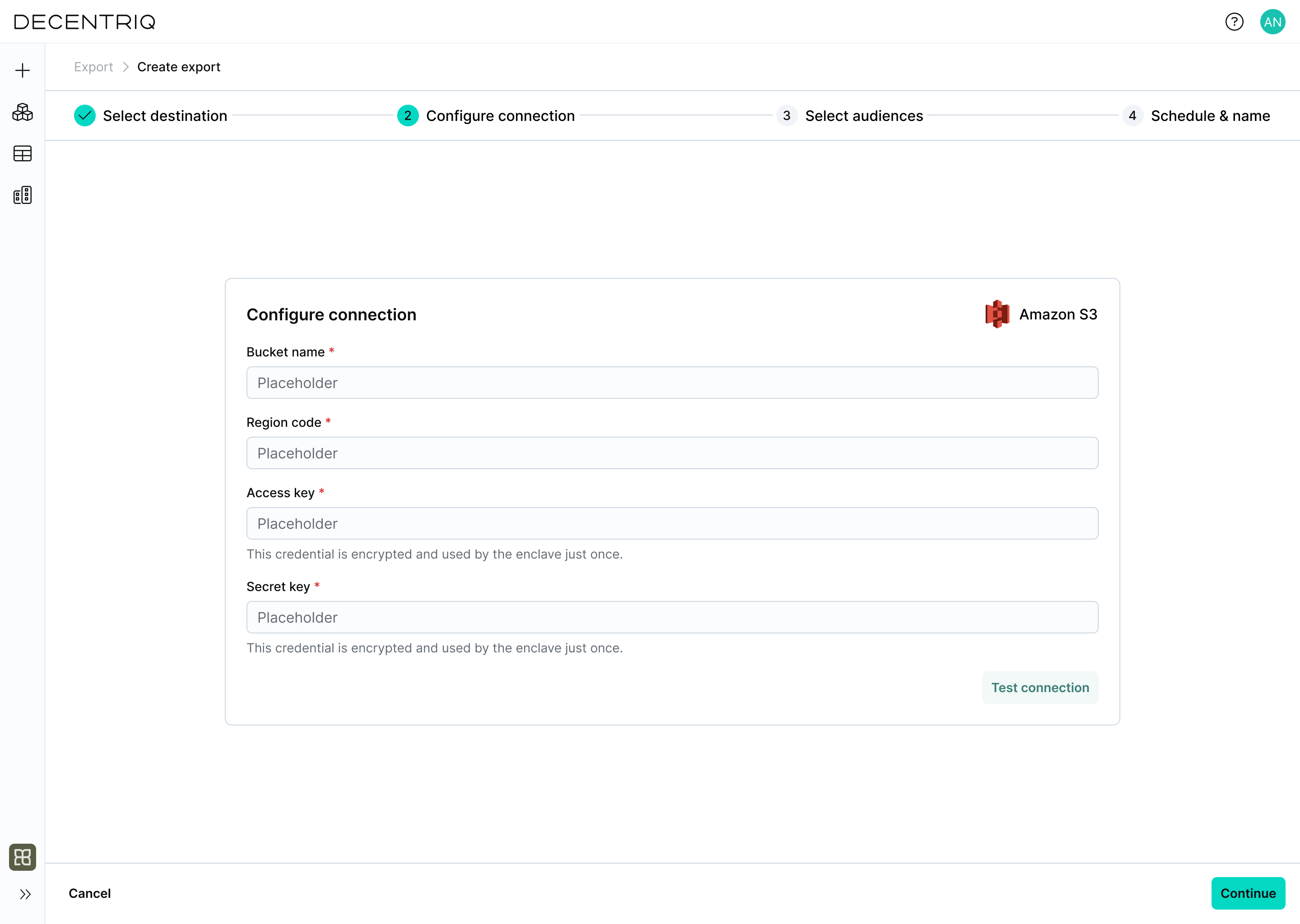
Click Test connection to verify that the credentials and configuration are valid.
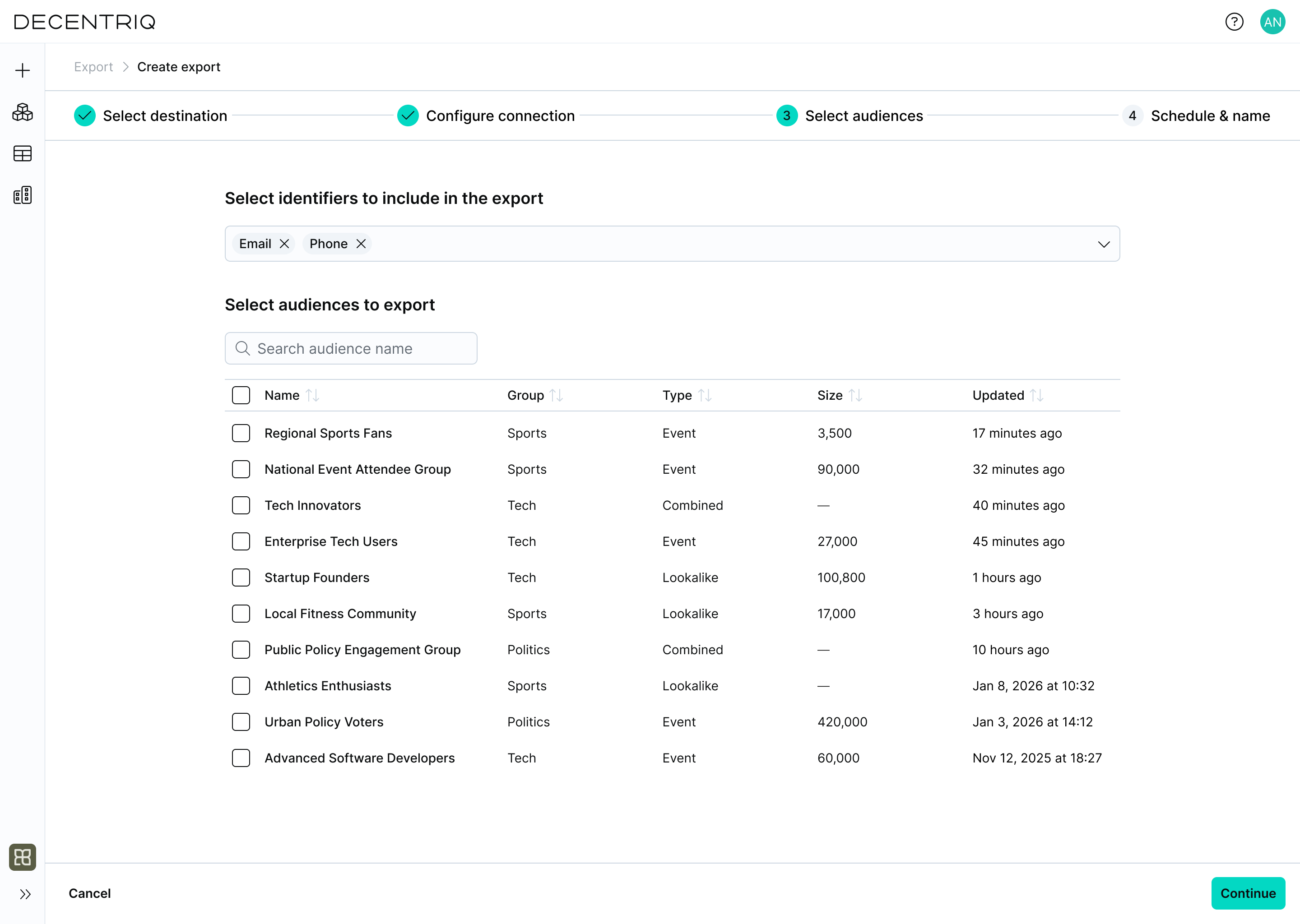
Step 3: Select audiences
Click Continue to proceed to audience selection. Select the identifiers to include in the export and choose the audiences to export. Multiple audiences can be selected. Only users belonging to at least one selected audience will be included.
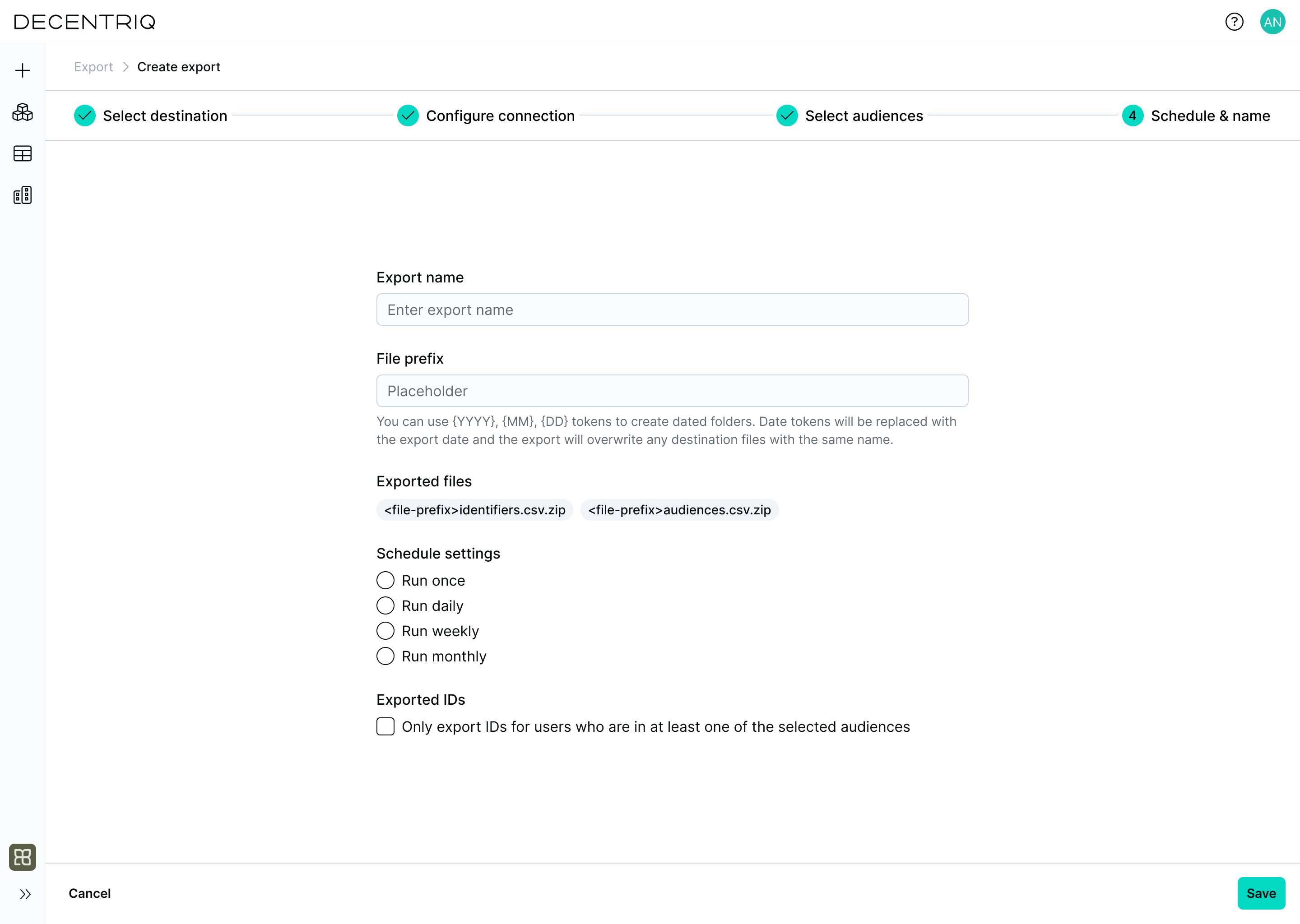
Step 4: Configure the export
Click Continue to proceed to export configuration. Enter the export configuration:
- Export name: A user-defined name for this export.
- File prefix: An optional prefix used to structure exported files. Date tokens can be used to create dated folders.
- Schedule settings: Define how often the export should run (run once or on a recurring schedule).
- Exported IDs: Choose whether to export only IDs for users included in the selected audiences.
Step 5: Create the export
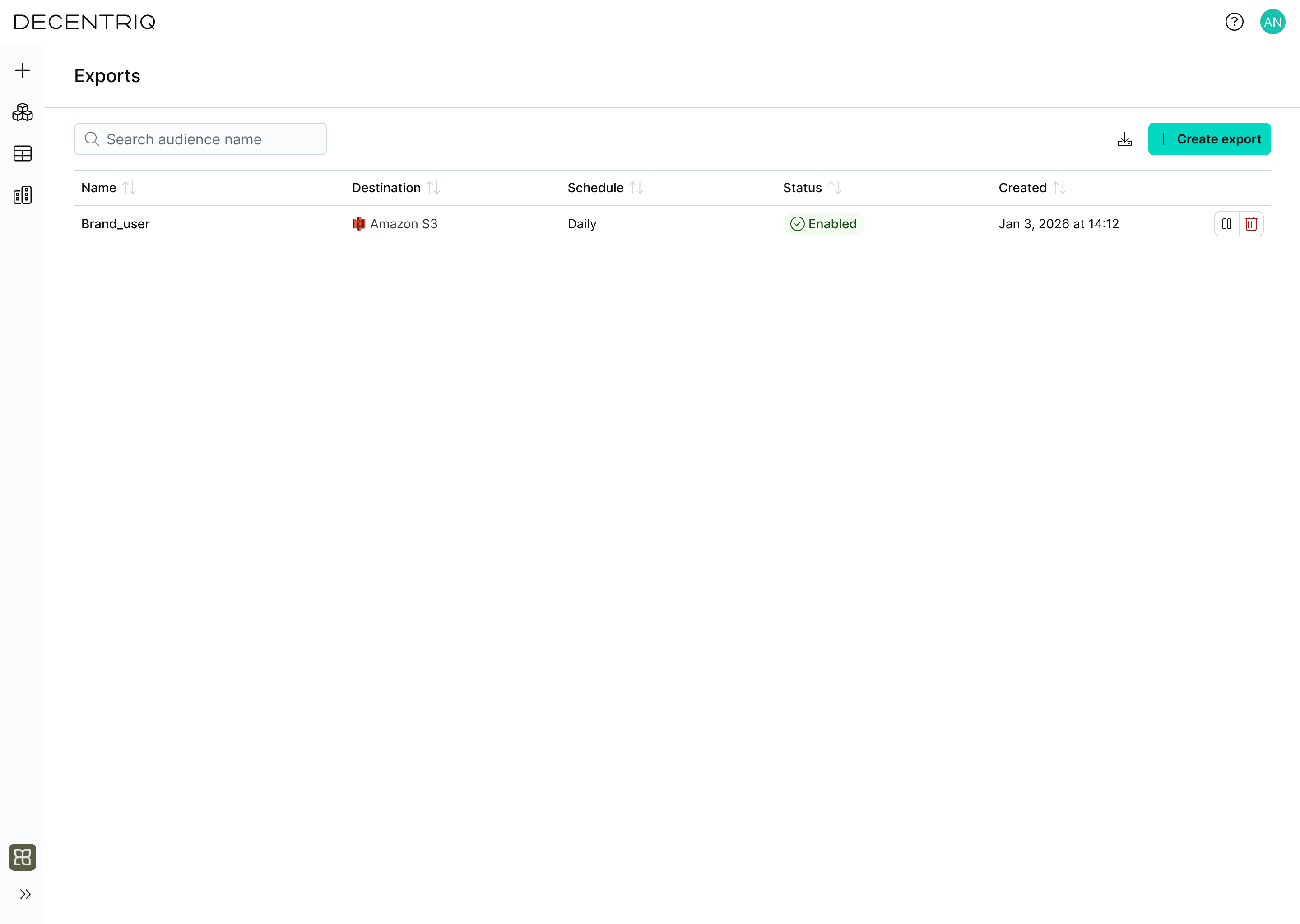
Click Continue to create the export. Once created, the export appears in the Exports table with the export name provided in the previous step. From there, you can monitor its status, review execution history, and manage future runs.