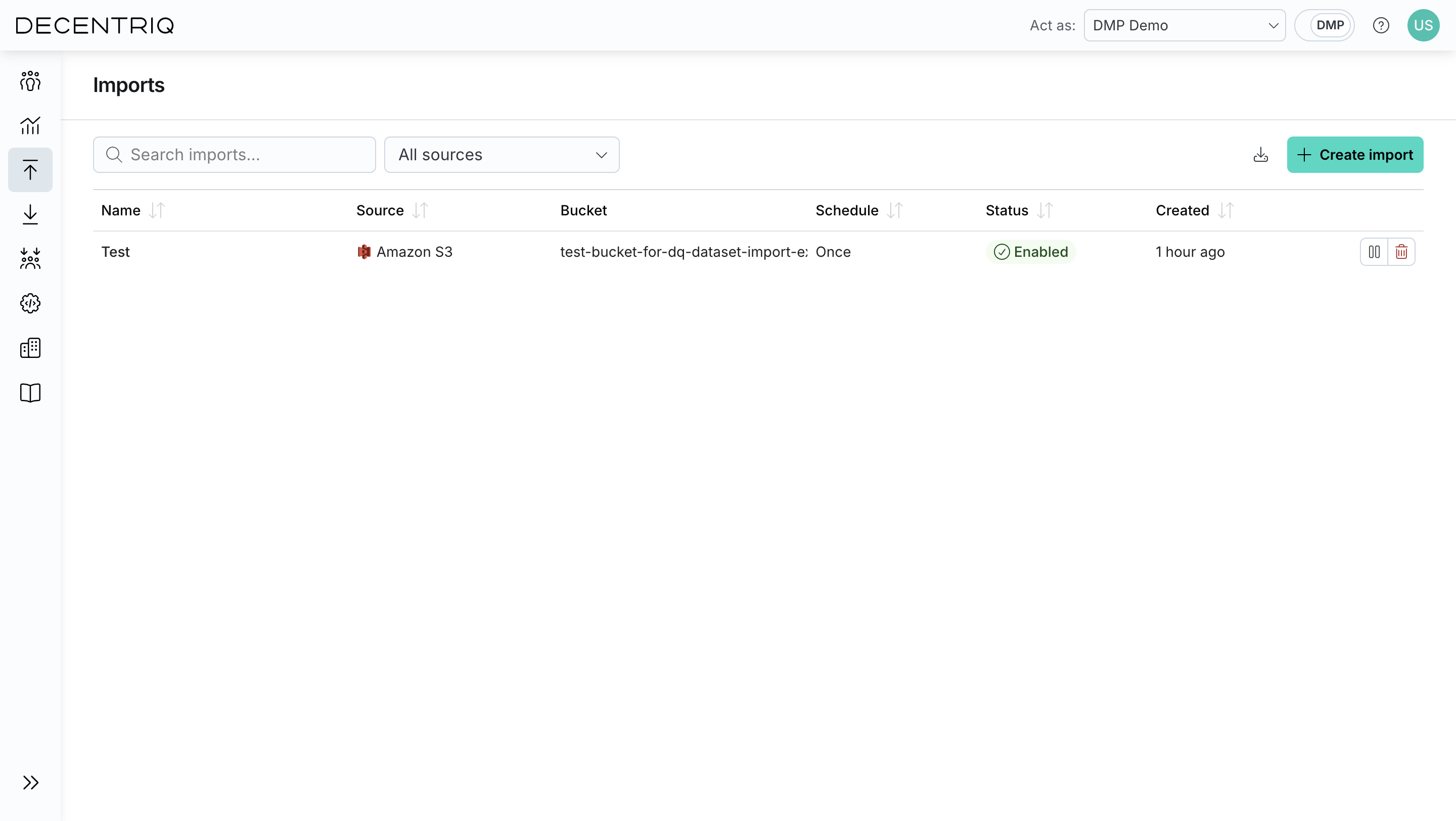
Amazon S3
Overview
The Amazon S3 connector provides a convenient way of importing event data directly from an Amazon S3 bucket into the Decentriq DMP.
Prerequisites
- Have an AWS account.
- Have an existing Amazon S3 bucket containing the data to import.
- Have valid AWS credentials with sufficient permissions to read the bucket and its contents. The access key ID and secret access key are required when importing.
- These can be generated in the AWS Console under IAM > Users > Security credentials.
Step-by-step guide
Step 1: Select the source
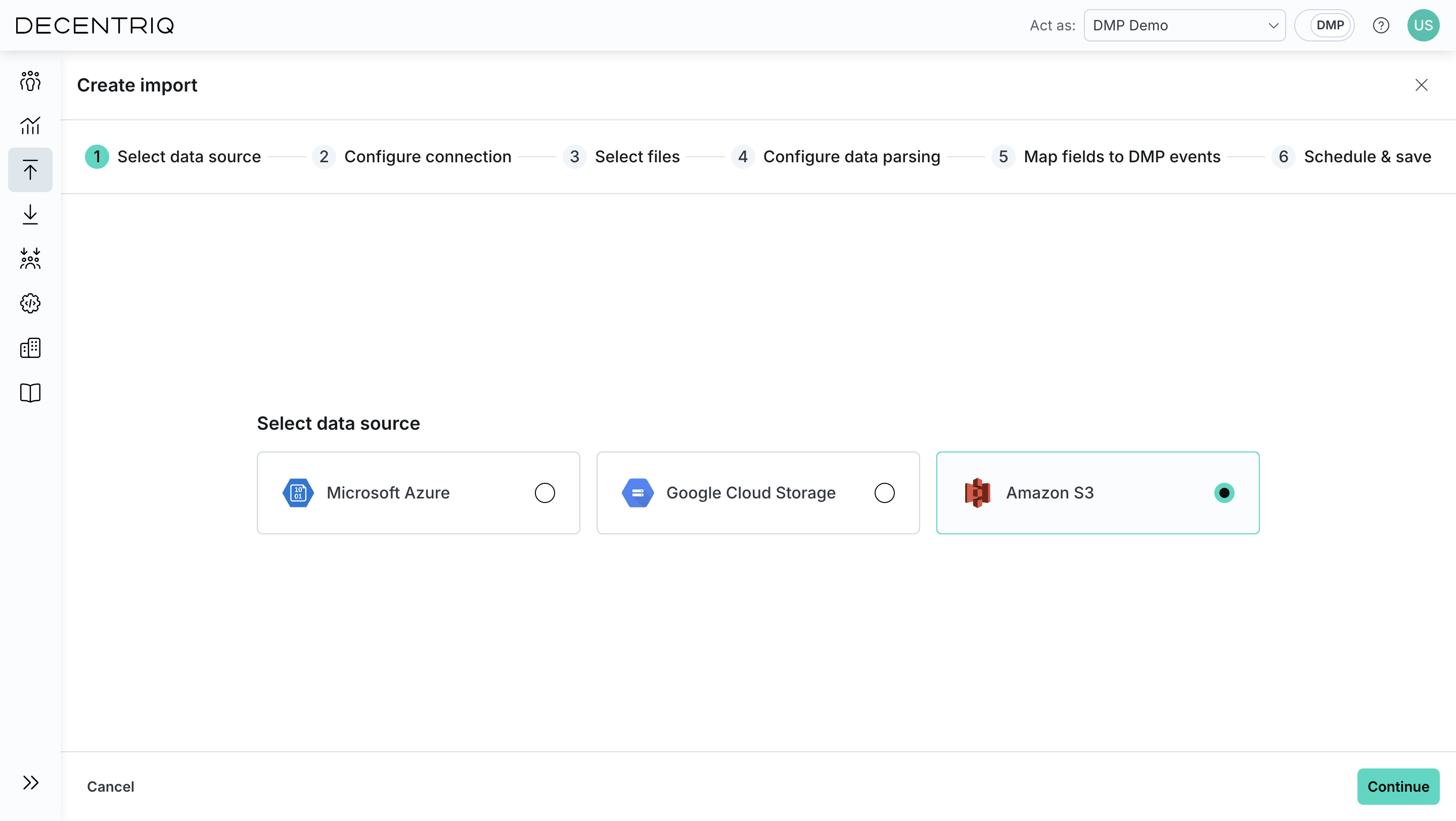
Follow the steps to create a new import and choose Amazon S3 from the list of available data sources.
Step 2: Configure connection
Input the required information:
- Access key ID: The AWS access key ID used to authenticate access to the S3 bucket.
- Secret access key: The secret key associated with the access key ID.
- Bucket: Name of the S3 bucket from which the data should be imported.
- Path prefix: An optional prefix used to limit the scope of retrieved objects to a specific folder within the bucket.
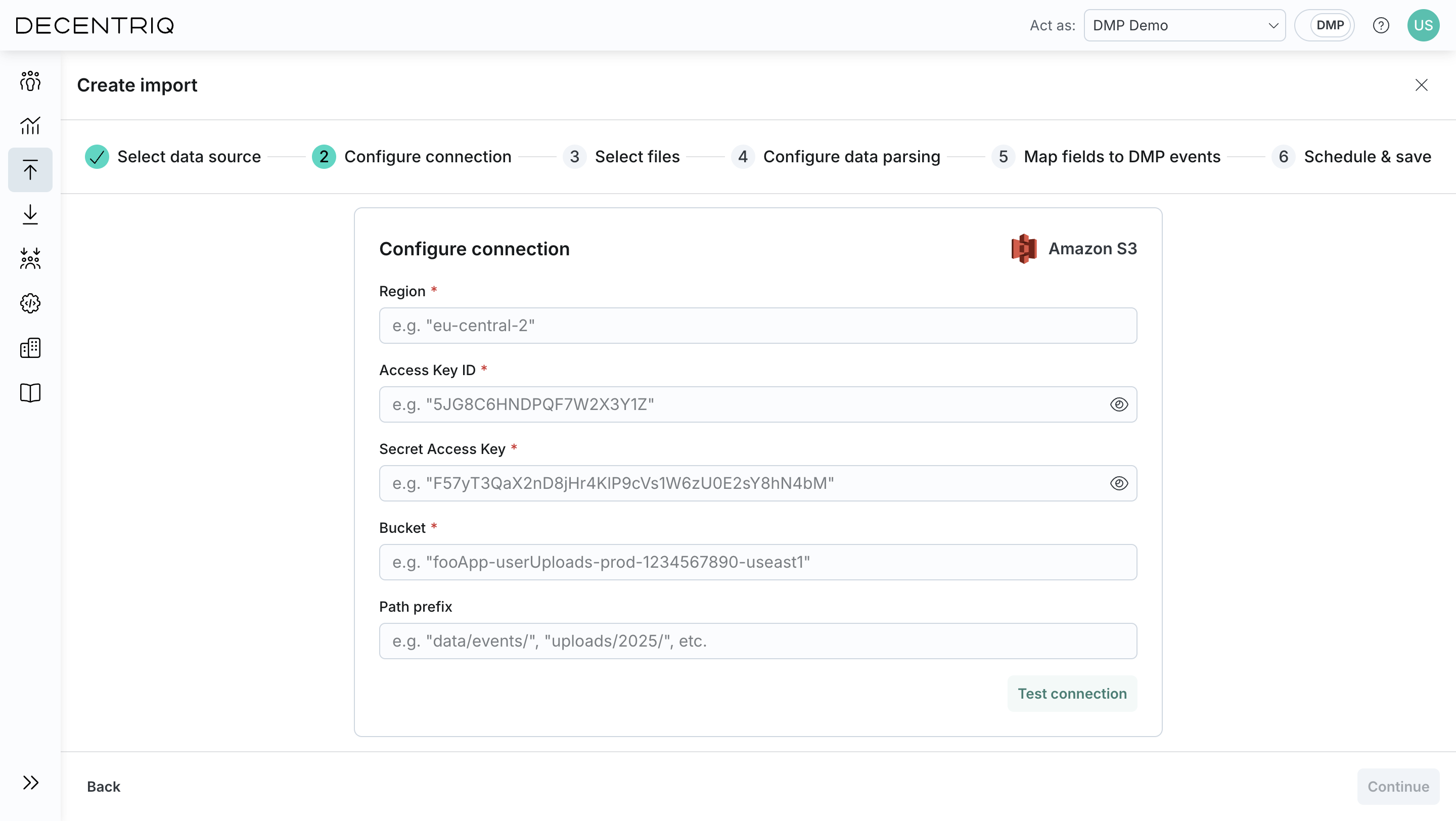
Click Test connection to verify that the credentials and configuration are valid.
Step 3: Select files
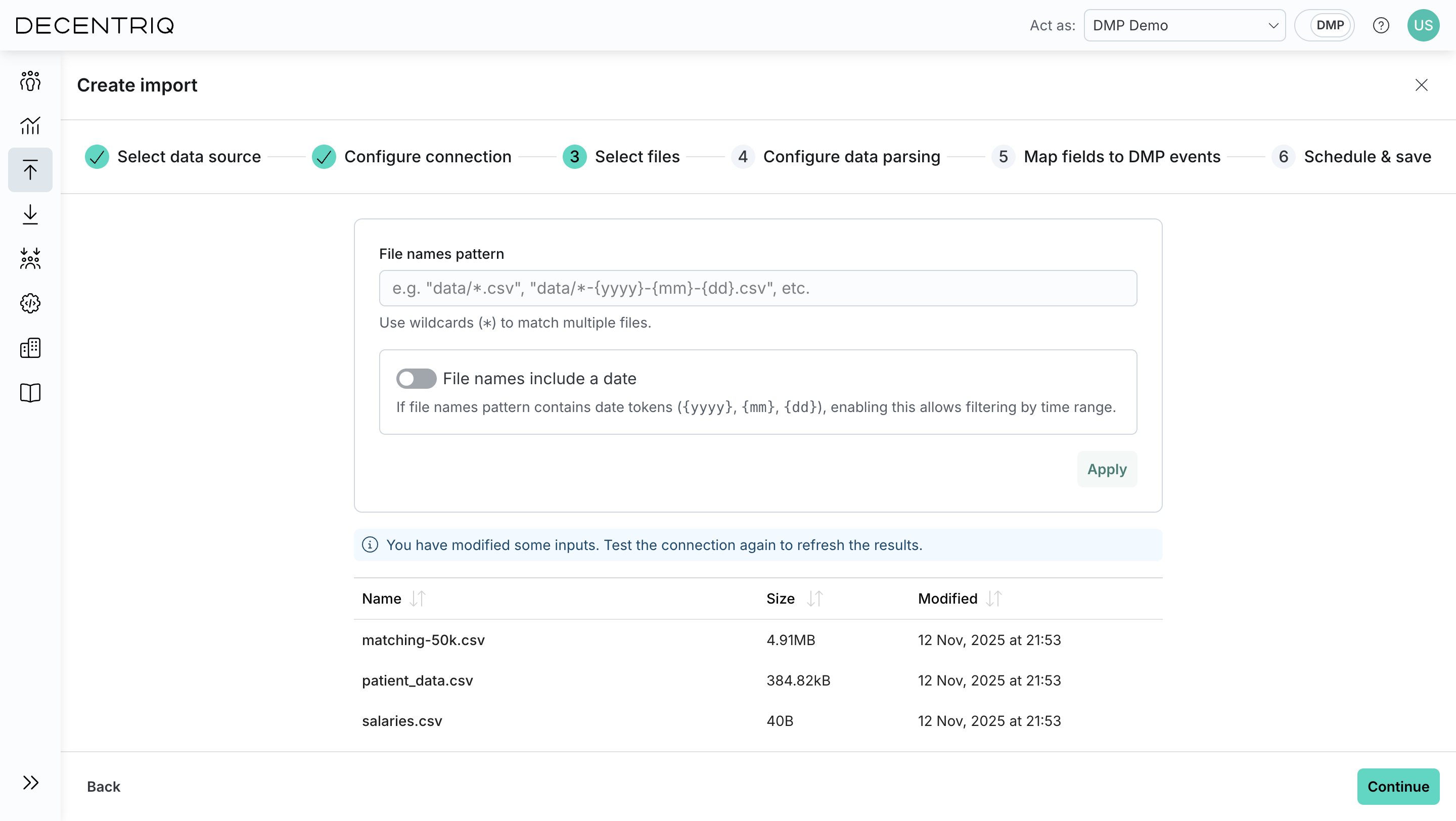
Click Continue to proceed to file selection. Configure which files should be imported:
- File names pattern: Define a path and file name pattern to match files (for example data/*.csv or data/*-{yyyy}-{mm}-{dd}.csv). Wildcards (*) are supported.
- File names include a date (optional): Enable this if the pattern contains date tokens ({yyyy}, {mm}, {dd}), then select an absolute or relative time range.
- Click Apply to update the list of matching files. The table displays all files that match the configured pattern and time range.
Step 4: Configure parsing
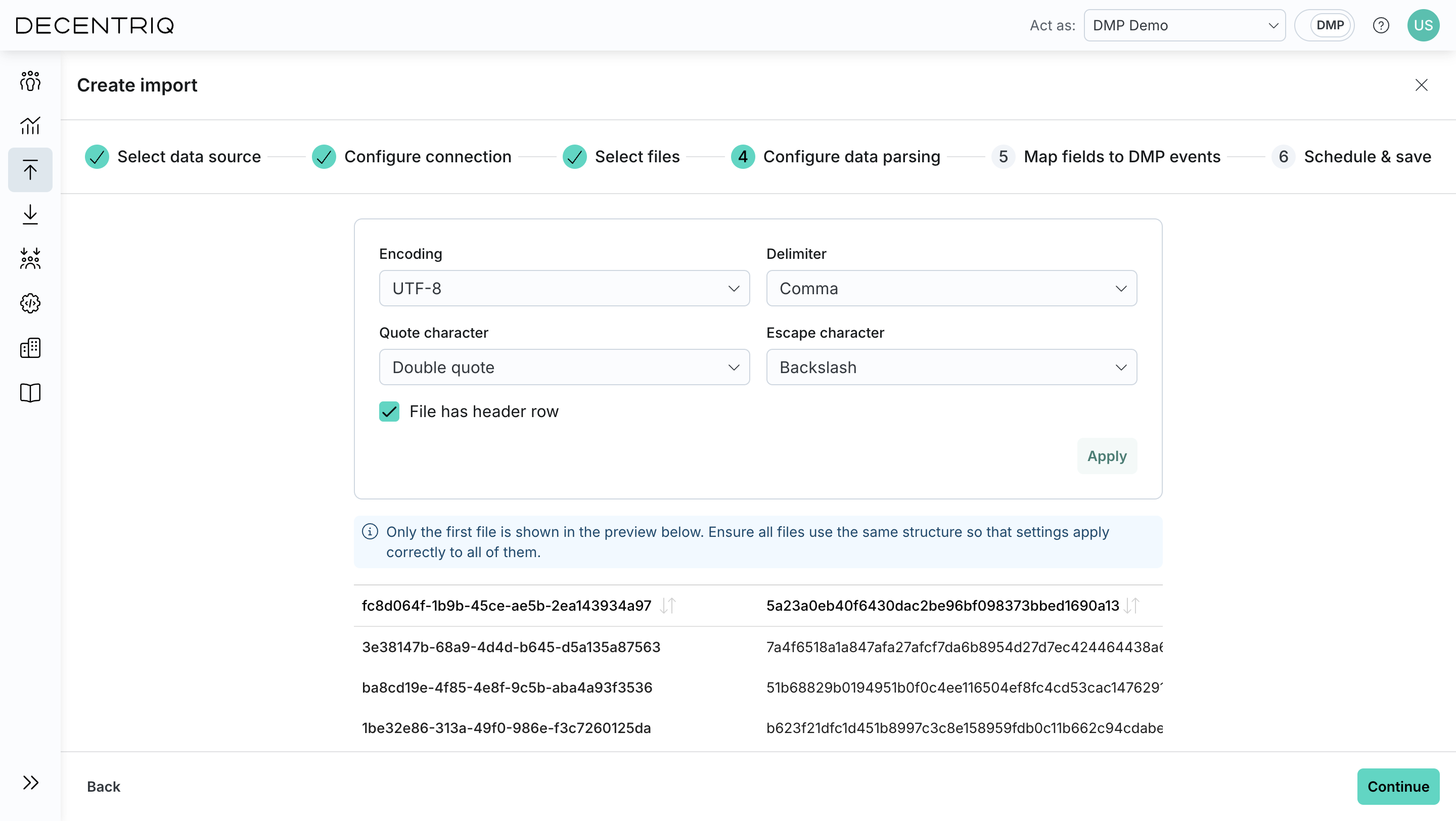
Click Continue to proceed to data parsing. Define how the selected files should be parsed, including format-specific options such as delimiters, headers, or timestamp handling.
Step 5: Map fields
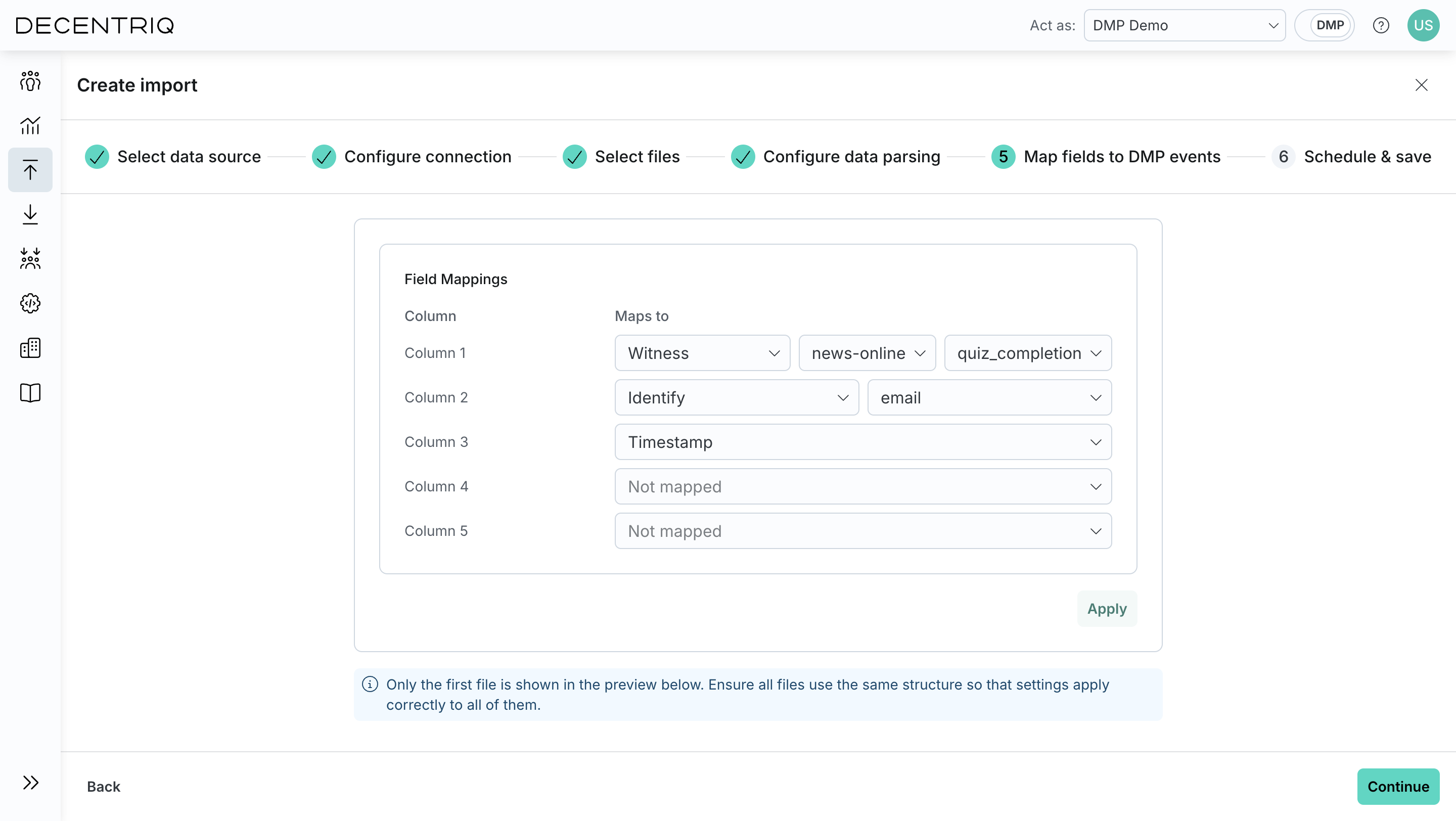
Click Continue to proceed to field mapping. Map the parsed fields to DMP event attributes. This step defines how incoming data is transformed into DMP events and user profile updates.
Step 6: Schedule and name
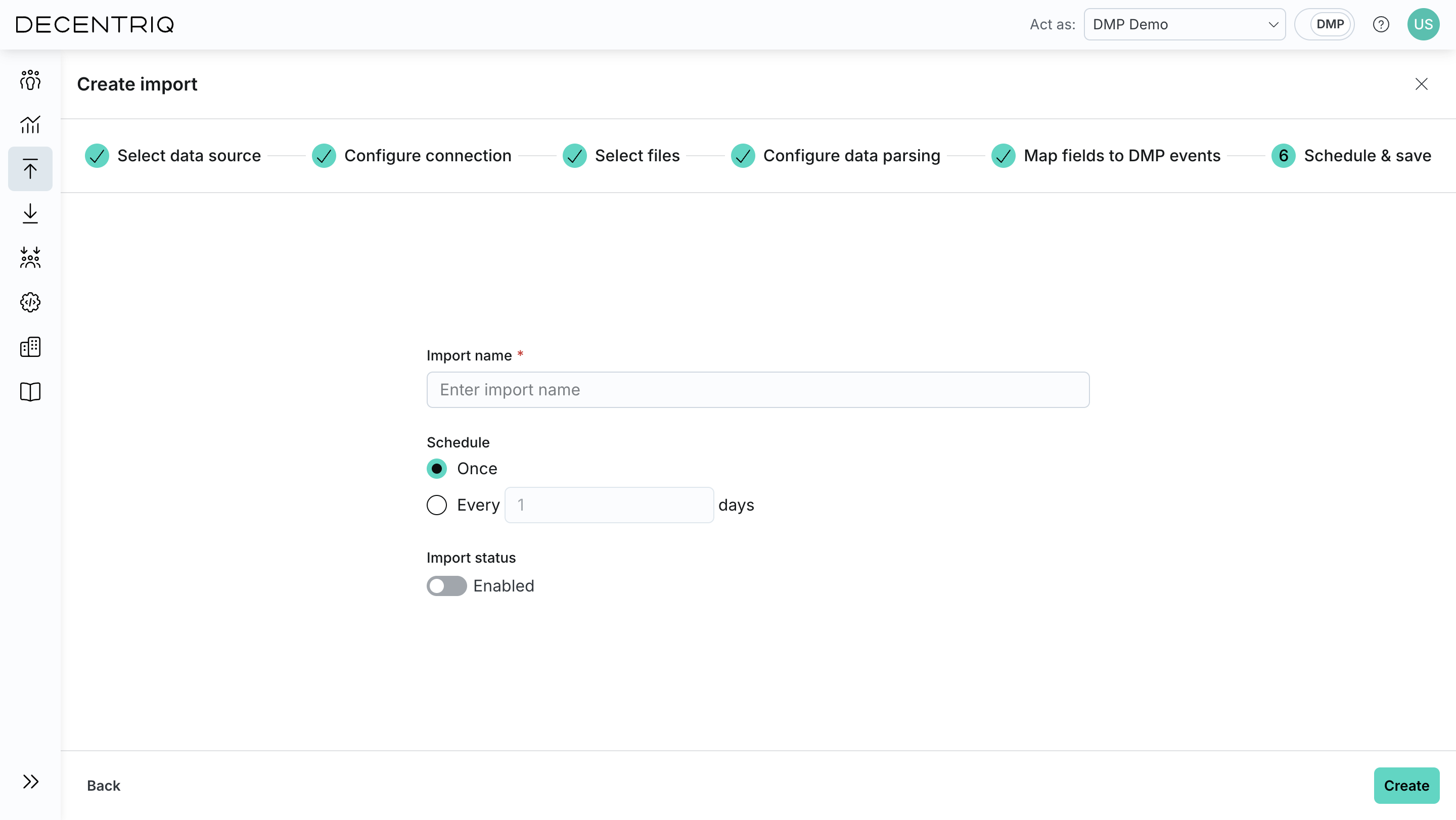
Click Continue to proceed to scheduling. Name the import and define how often it should run. Save the configuration to create the import.
Step 7: Save the import
Click Save to create the import. The import will then appear in the Imports table with the name provided in the previous step.