Using a Datalab
Step 1: Upload your datasets
Upload your prepared datasets to the Dataset Portal using one of these methods:
- Manual upload in the UI (files < 1GB)
- Import connectors for cloud storage buckets, or other external sources (files ≥ 1GB)
- Python SDK (automated pipelines)
Make sure your data is properly formatted according to the dataset requirements. Besides plain CSV, .csv.gz, Parquet, and zip archives are also accepted — but browser upload supports only CSV.
Step 2: Provision datasets to the Datalab
Open the Datalab you created and provision each dataset:
- Click Provision dataset next to the dataset slot
- Select Choose from my stored datasets

If a Datalab dataset has outdated data that needs to be refreshed, deprovision the existing dataset first:

Datalabs currently need to be reprovisioned to Media DCRs for a change of data to take effect.
Step 3: Validation
Click Validate Datalab to start validation. Validation checks that:
- Each dataset matches its expected format
- Identifiers match the configured identifier type
userIdvalues are consistent across all datasets
See Dataset validation for the full list of checks and what counts as an invalid row.
Validation may take up to a few hours, depending on data size. Once successful, the status turns green and the Datalab is ready to be provisioned to a Media DCR:
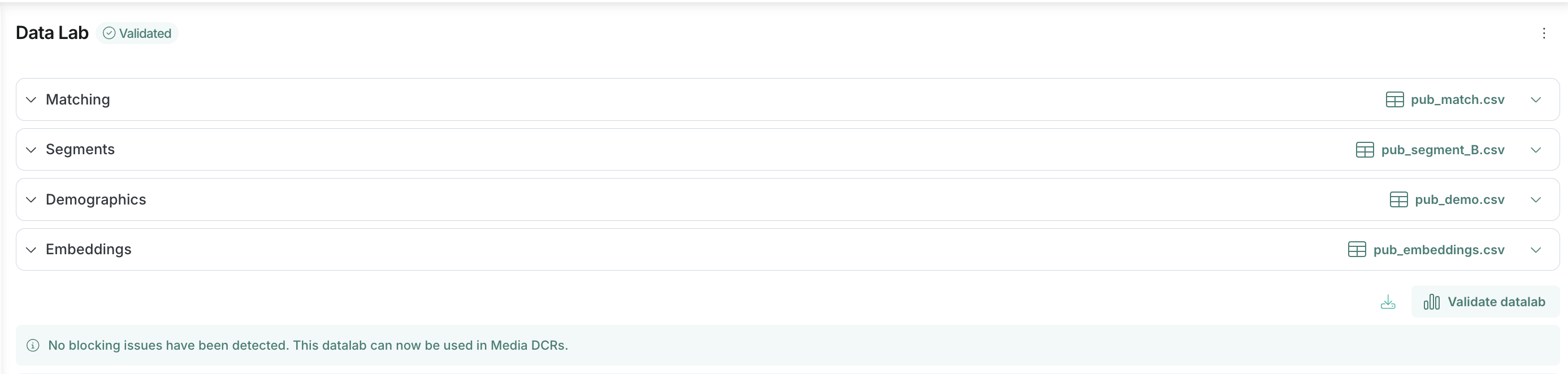
Datalab statistics
After validation, the Datalab page shows aggregated statistics grouped by dataset (Identifiers, Segments, Demographics, Embeddings). Use the filter to display only specific statistics, or download the full report as JSON.
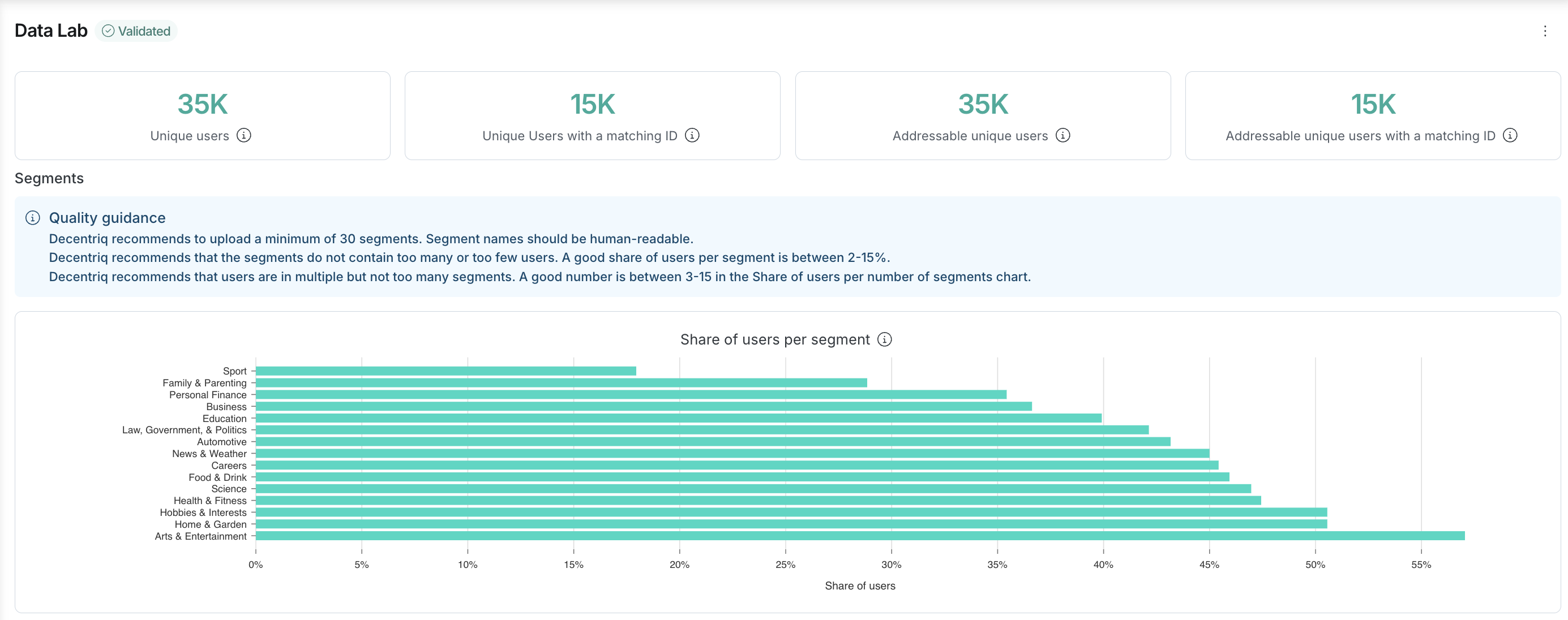
Publishers are strongly advised to review the dashboard with a Decentriq expert to make sure the data is ready for a Media DCR. Contact Decentriq to book a session.
Aggregated statistics can be shared with Decentriq admins, depending on your organization's statistics sharing setting. The per-dataset validation reports — which are downloaded as separate files — are never shared. If you hit a validation error, paste the report contents into an email to support@decentriq.com.
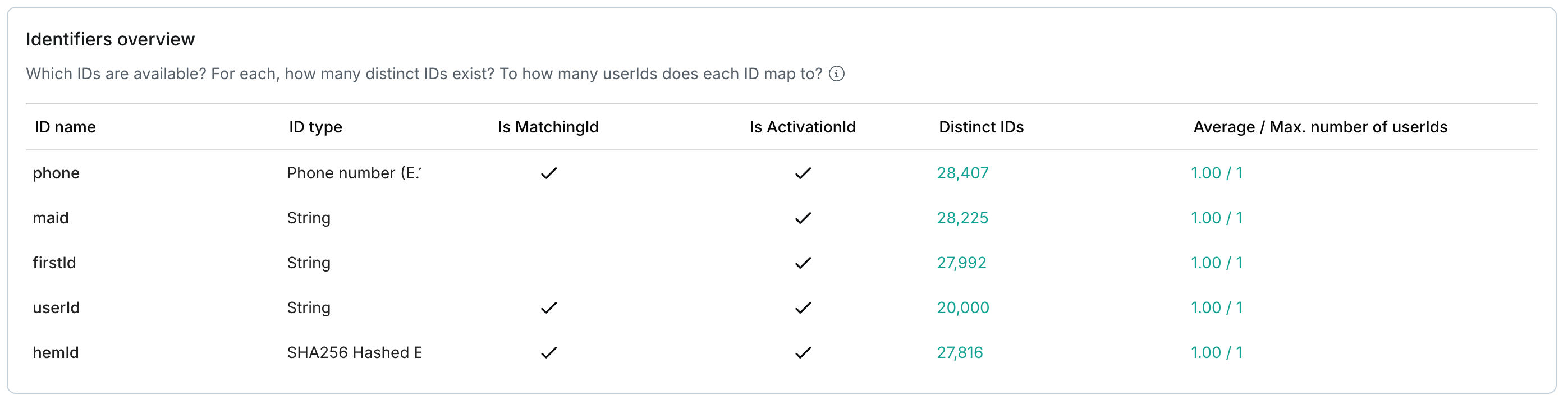
Identifiers overview
Always shown.
Which IDs are available? For each, how many distinct IDs exist? To how many userIds does each ID map to?
Shows if the expected number of IDs have been uploaded.
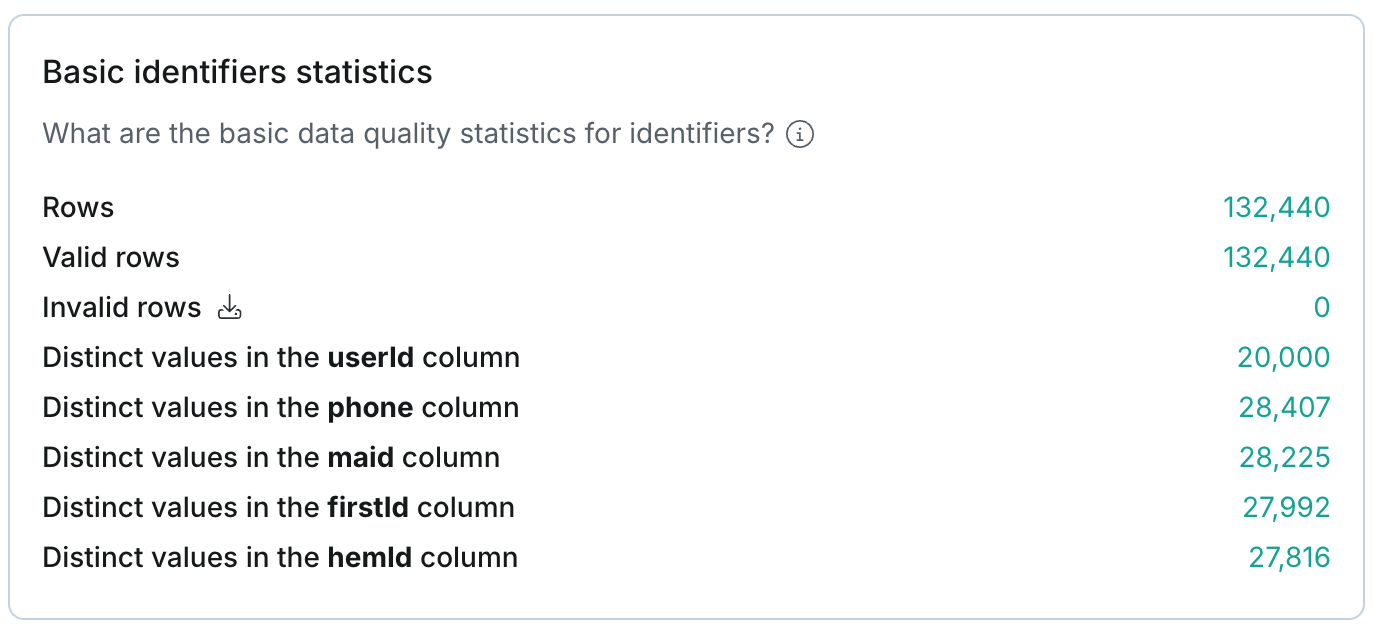
Basic identifiers statistics
Always shown.
What are the basic data quality statistics for identifiers?
Helps spot anomalies.
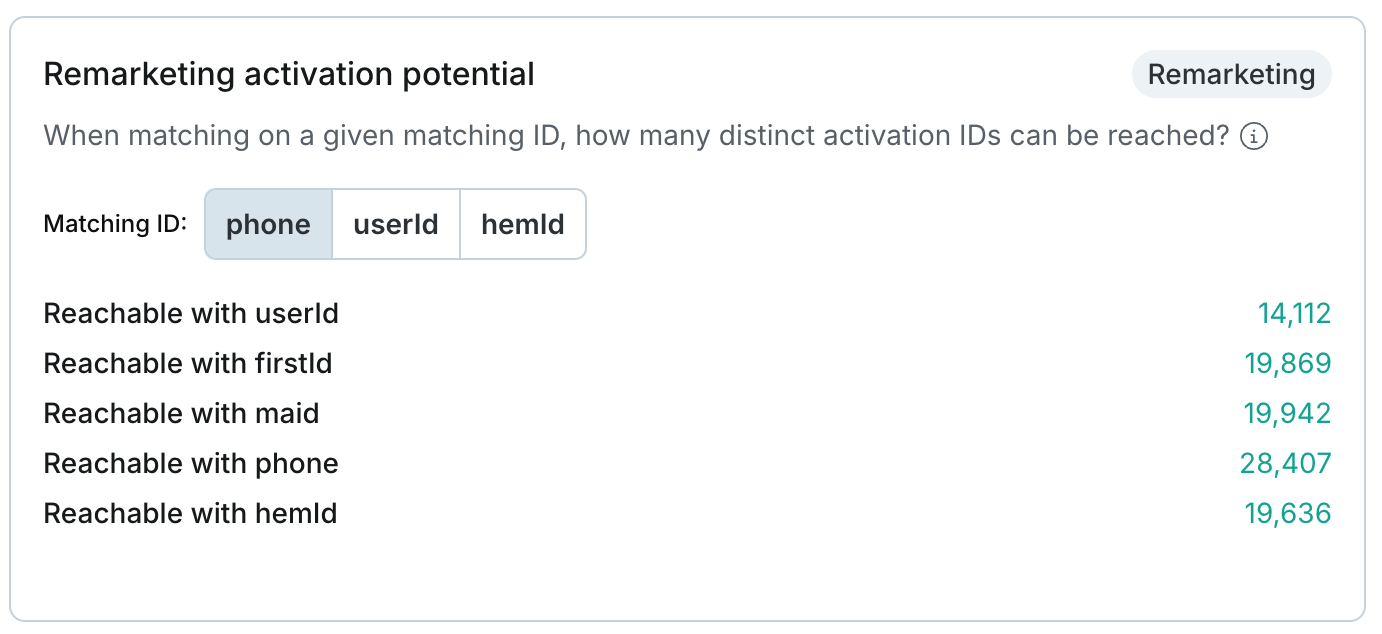
Direct marketing potential
Shown when the Datalab supports the Remarketing audiences or Exclusion targeting collaboration type.
When matching on a given matching ID, how many distinct activation IDs can be reached?
Helps understand the potential of a direct marketing campaign for a given matching / activation ID pair.
Basic segments statistics
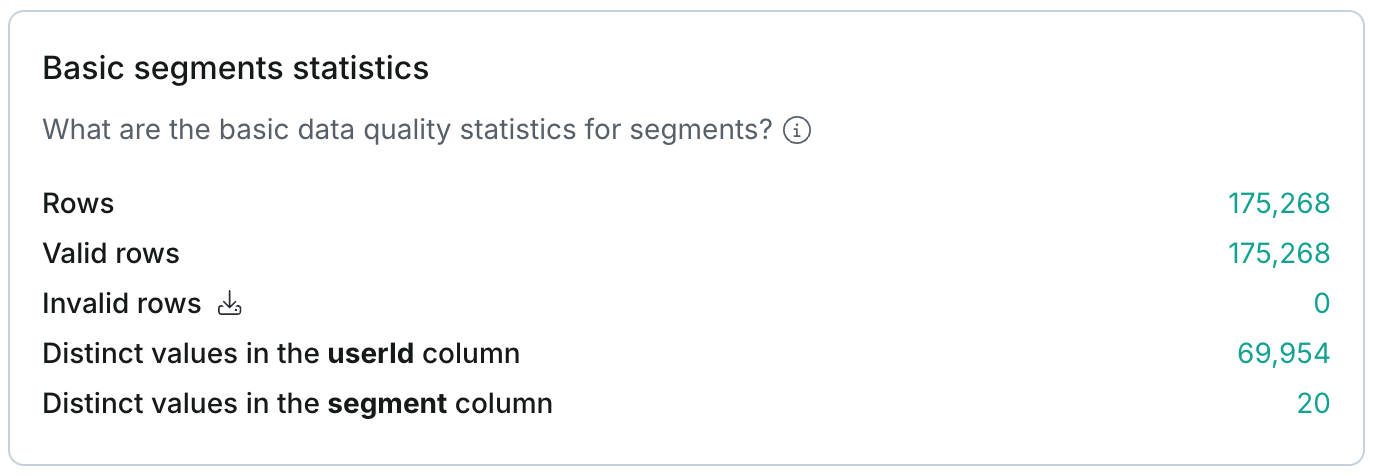
Shown when a Segments dataset is provided.
What are the basic data quality statistics for segments?
Helps spot anomalies before running deeper matchability or activation analysis.
Segments activation potential
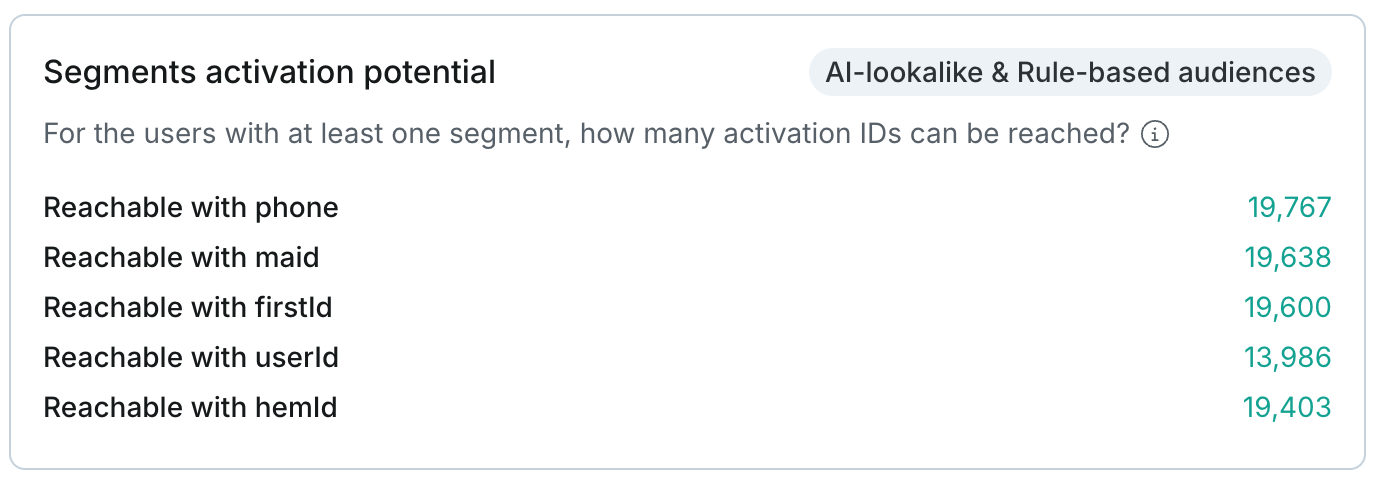
Shown when the Datalab supports the AI lookalike or Rule-based audiences collaboration type and a Segments dataset is provided.
For the users with at least one segment, how many activation IDs can be reached?
Higher activation counts mean greater audience reach for targeted segment-based campaigns.
Segment user counts
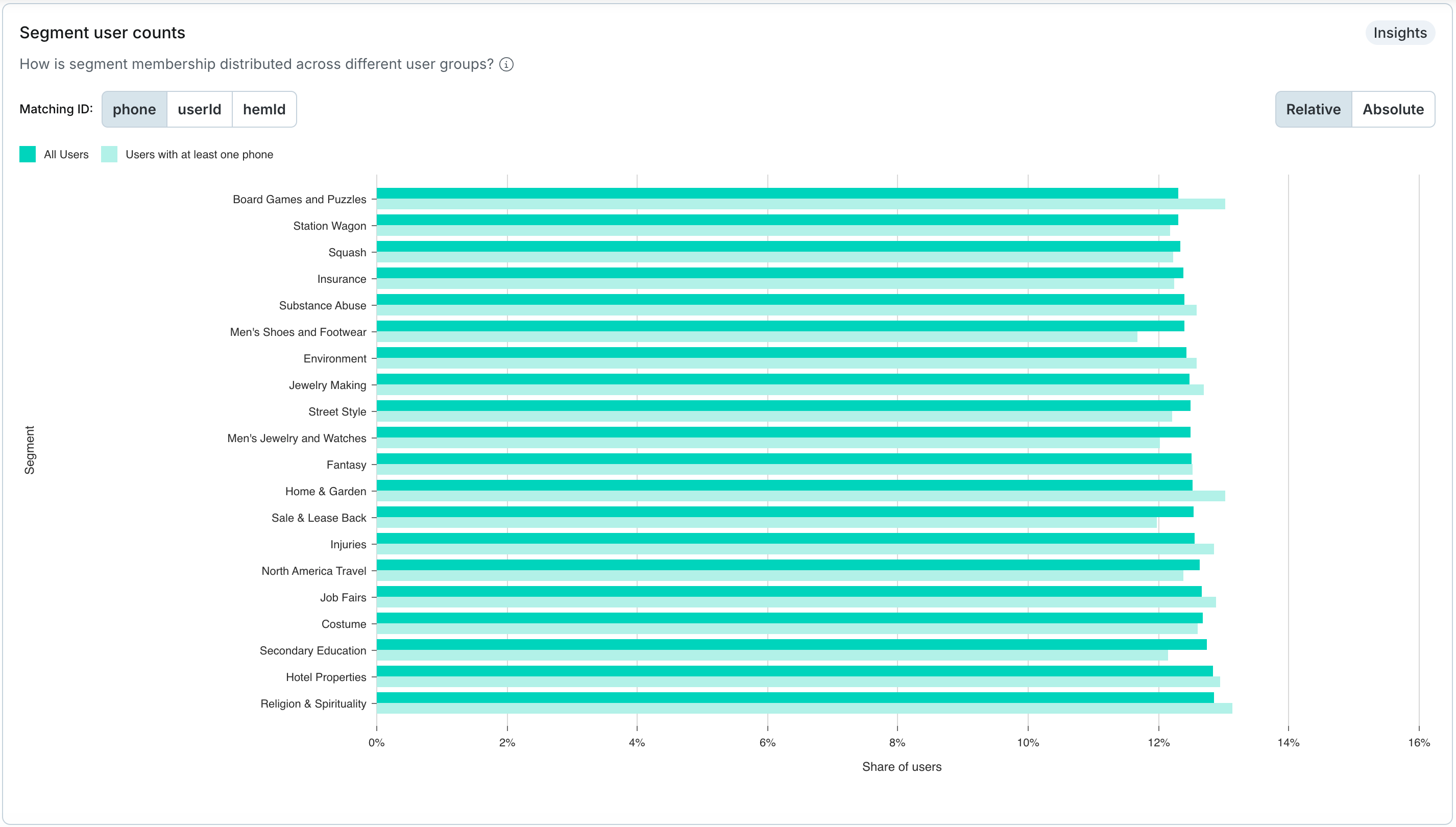
Shown when the Datalab supports Insights and a Segments dataset is provided.
How is segment membership distributed across different user groups?
Helps compare segment representation between all users and users you can match via different identifier types.
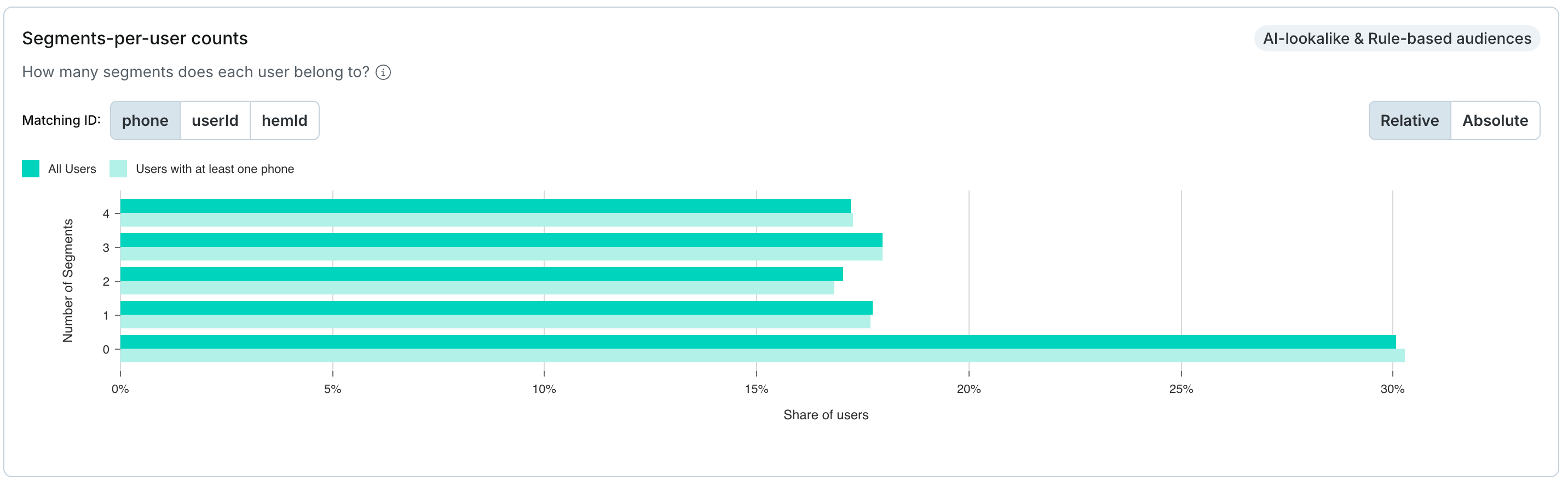
Segments-per-user counts
Shown when the Datalab supports the AI lookalike or Rule-based audiences collaboration type and a Segments dataset is provided.
How many segments does each user belong to?
Shows whether segmentation is evenly distributed or concentrated. Toggle between all users and matchable subsets.
Basic demographics statistics
Shown when a Demographics dataset is provided.
What are the basic data quality statistics for demographics?
Helps spot anomalies before running deeper matchability or activation analysis.

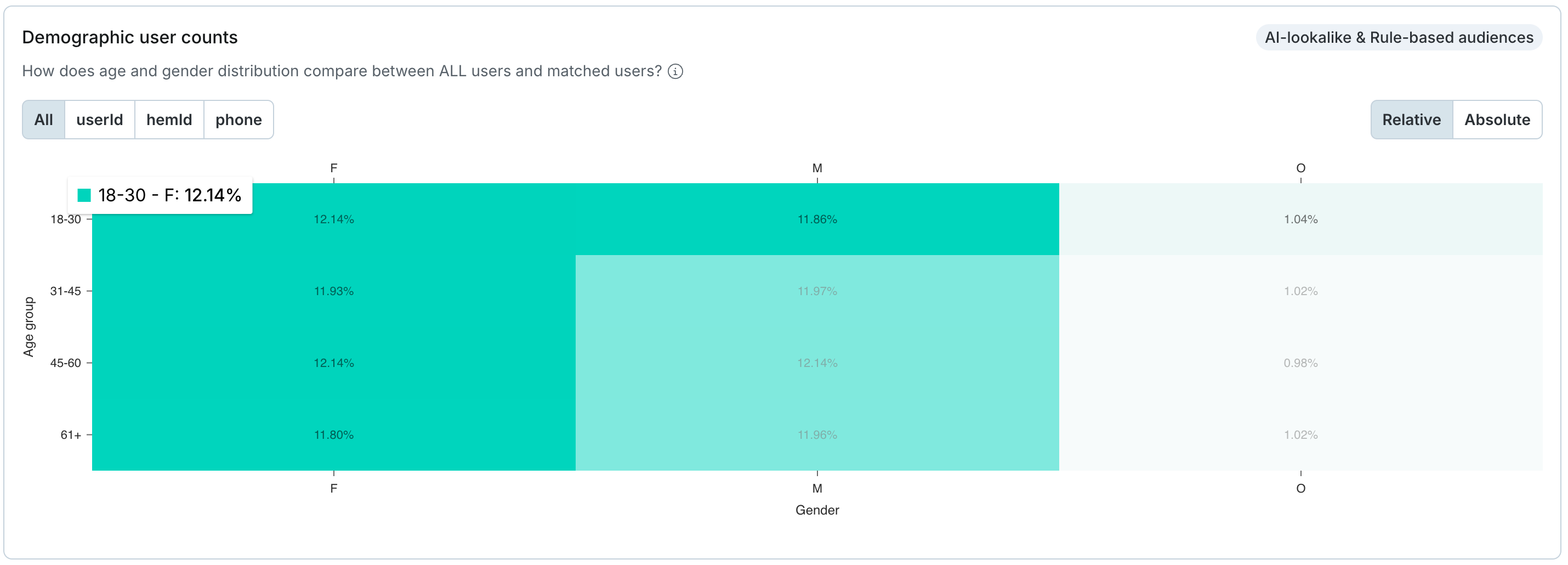
Demographic user counts
Shown when the Datalab supports the AI lookalike or Rule-based audiences collaboration type and a Demographics dataset is provided.
How does age and gender distribution compare between all users and matched users?
Helps compare demographic representation across the total dataset versus the subset of users you can uniquely match.
Basic embeddings statistics
Shown when an Embeddings dataset is provided.
What are the basic data quality statistics for embeddings?
Helps spot anomalies before running deeper matchability or activation analysis.

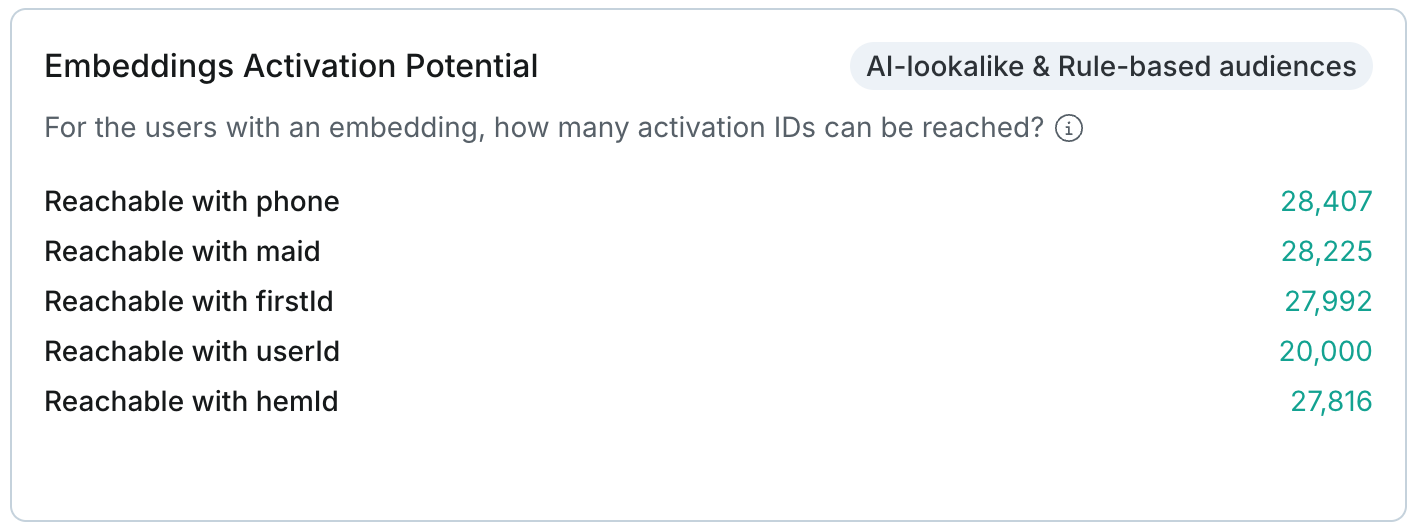
Embeddings activation potential
Shown when the Datalab supports the AI lookalike or Rule-based audiences collaboration type and an Embeddings dataset is provided.
For the users with an embedding, how many activation IDs can be reached?
The more users that have both an embedding value and an activation ID, the better the lookalike audience can be activated.
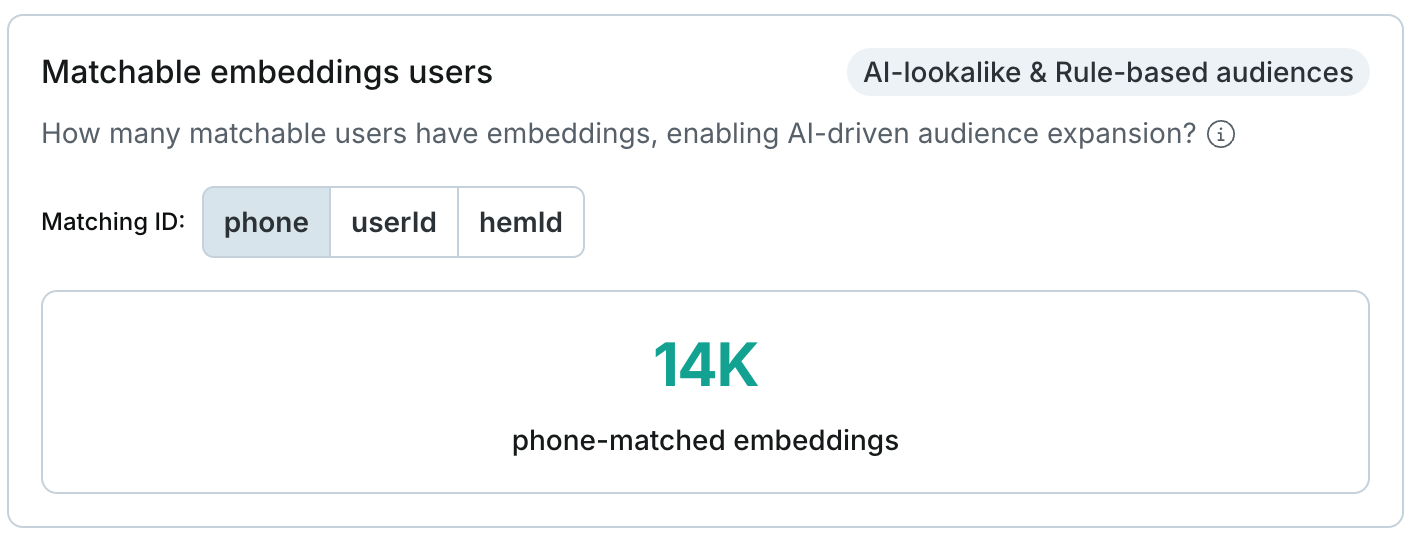
Matchable embeddings users
Shown when the Datalab supports the AI lookalike or Rule-based audiences collaboration type and an Embeddings dataset is provided.
How many matchable users have embeddings, enabling AI-driven audience expansion?
The more users that have both a matching ID and an embedding value, the more likely the seed audience users can be found for lookalike modeling.
Step 4: Provisioning to Media DCRs
Once your Datalab is validated and shows a Ready status, you can provision it to Media DCRs. See the Media DCR Data tab for the provisioning process and how to monitor results.
A single Datalab can be provisioned to multiple Media DCRs simultaneously. To keep your Datalab current with fresh data, see Refreshing the base audience.